How to Scan a QR Code on iPhone, Android, and Everywhere Elseكيف تمسح رمز QR على آيفون وأندرويد وكلّ مكان آخر
Scanning a QR code on a modern phone is built into the camera app — no separate scanner app needed since 2017 on iOS and 2018-2019 on Android. But there are still situations where the camera doesn't pick it up, where you want to scan from an image or screenshot, or where you're on a phone old enough that the built-in scanner isn't there. This is the complete guide.مسح رمز QR على هاتف حديث مدمج في تطبيق الكاميرا — لا حاجة إلى تطبيق ماسح منفصل منذ ٢٠١٧ على iOS ومن ٢٠١٨-٢٠١٩ على أندرويد. لكن لا تزال هناك حالات لا تلتقط فيها الكاميرا الرمز، أو تريد المسح من صورة أو لقطة شاشة، أو تكون على هاتف قديم بما يكفي لعدم وجود الماسح المدمج فيه. هذا هو الدليل الكامل.
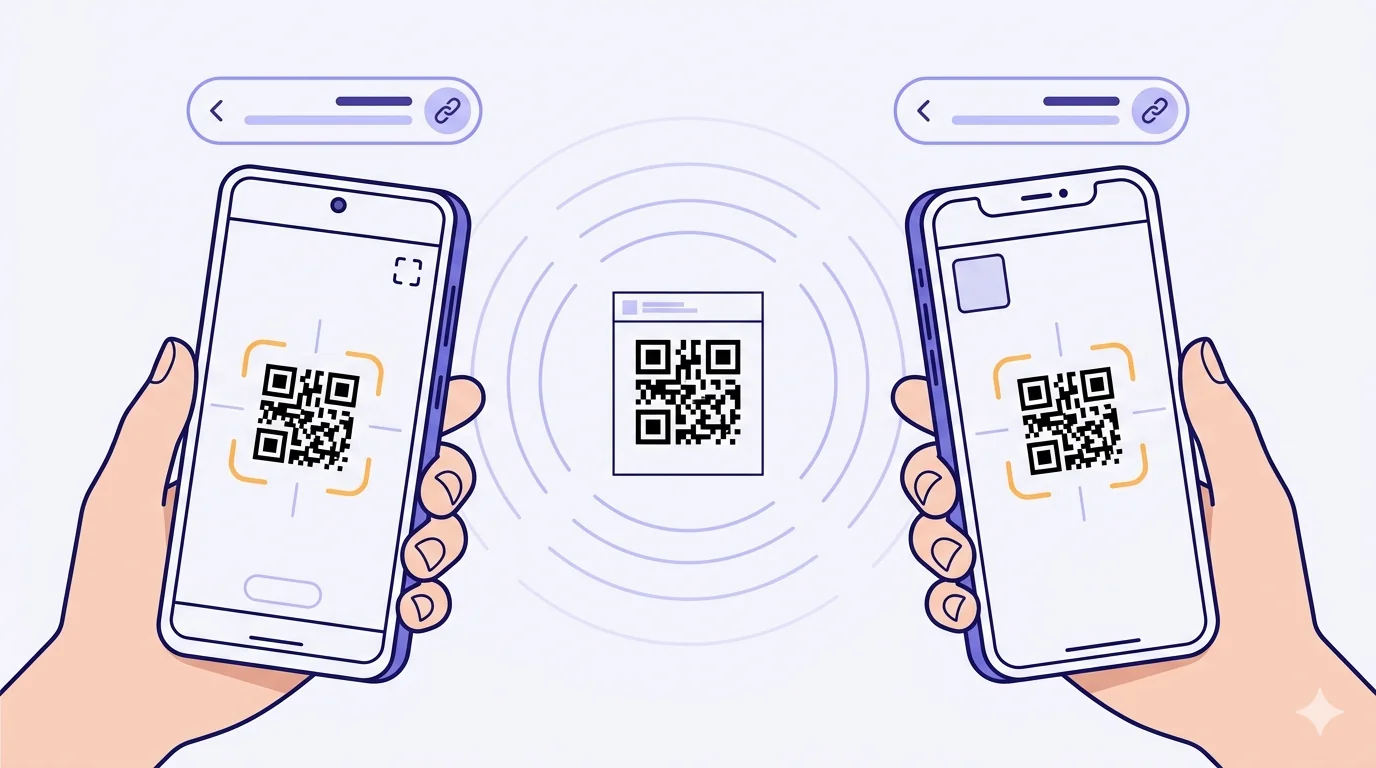
If you Googled this question, you almost certainly already have everything you need to scan a QR code in your pocket. Modern iPhones and Androids have built-in QR scanning in the camera app — Apple added it in iOS 11 (September 2017), most Android manufacturers added it through Google Lens or the native camera over 2018-2019, and by 2020 it was a universal default. You no longer need a separate 'QR code reader' app, and you absolutely shouldn't download one — many of those apps are ad-loaded shovelware that just call the same camera-API under the hood.
That said, there are still real situations where this doesn't just work: the camera doesn't recognise the QR, the phone is old, the QR is on the screen you're holding the phone with, or you only have a screenshot. This guide covers all of them, starting with the path that handles 99% of cases.
iPhone — the standard scan path
Open the Camera app (any iPhone running iOS 11 or later — that's every iPhone made after 2014). Point the rear camera at the QR code. Hold steady for half a second; iPhone shows a yellow-bordered highlight around the QR and a notification banner at the top of the screen with the URL preview. Tap the banner. The URL opens in Safari (or whichever app the link is registered to handle — WhatsApp for wa.me links, Maps for maps URLs, Wallet for boarding-pass codes).
If nothing happens: check that 'Scan QR Codes' is enabled under Settings → Camera (it's on by default, but some users have turned it off years ago and forgotten). If it's still not working, see the troubleshooting section below.
Two faster iPhone alternatives
- Control Centre QR scanner — swipe down from the top-right (or up from the bottom on older iPhones) to open Control Centre, tap the QR-code scanner icon (you may need to add it via Settings → Control Centre first). This opens a dedicated scanner UI with a clearer frame and works in dim light. Useful for restaurants and outdoor scans where the camera viewfinder is busy.
- Lock-screen camera shortcut — long-press the camera icon on the lock screen, or swipe left from the lock screen, to open the camera without unlocking. Point at the QR. Works exactly the same way as the regular camera but skips the unlock step. The fastest path of all.
Android — the standard scan path
Open the Camera app. Point at the QR. Most Android camera apps (Samsung, Pixel, OnePlus, Xiaomi, Huawei, Honor, Oppo, Vivo, Realme) recognise QR codes natively and show a small detection box plus a tap-to-open banner. Tap the banner; the URL opens in your default browser.
Android fragmentation creates more variation than iOS. If your camera doesn't auto-detect QR codes, the answer depends on which phone you're on:
Samsung phones
Most Samsung phones have a 'QR Scanner' toggle. Open Camera → tap the gear icon (or 'More' menu) → enable 'Scan QR codes'. Alternatively, swipe down to open Quick Settings, swipe down again to expand, and look for a 'QR scanner' tile. If not visible, tap the pencil/edit icon and add it from the available tiles.
Pixel and stock Android phones
Stock Android (Pixel and Android-One devices) routes QR scanning through Google Lens. Open Camera → look for the Lens icon (a small square with a dot in the centre, usually on the camera control row) and tap it. Point at the QR. Or open Google Lens directly from the app launcher. Or, even faster: long-press the Google search widget on your home screen and select Lens.
Xiaomi, Huawei, Oppo, Vivo, Realme
Most Chinese-brand Android phones include AI-powered scene detection that handles QR codes automatically once the camera frames one. If yours doesn't, look for a 'Smart vision' or 'AI scan' toggle in the camera settings, or use the manufacturer's pre-installed scanner (often named after the brand: Mi Scanner on Xiaomi, AI Lens on Huawei, etc.).
Scanning a QR you can't physically point at — image and screenshot
Three common situations: the QR is on your own phone's screen (so the camera can't see it); the QR is in a screenshot or image saved to your photo gallery; the QR is in a PDF or document file. The trick is using your phone's image-scan capability instead of the live camera.
iPhone — scan from a saved image
Open the Photos app. Find the image with the QR code in it. Open it. Press and hold the QR code in the image. iOS 16 and later recognises QRs inside images and offers an 'Open in Safari' link directly in the contextual menu. On older iOS, screenshot the QR, open it in Photos, and use the Markup or Share → Live Text route which sometimes captures URLs.
iPhone — scan a QR currently on the screen you're using
Screenshot it (Volume Up + Side button), then open the screenshot in Photos and long-press the QR. Or use Apple's screen-share/screenshot live-preview to tap the QR directly. The cleanest path: when you receive a QR in a messaging app, long-press the image itself (without screenshotting) — iOS often detects the QR and offers to open the URL inline.
Android — scan from a saved image
Open Google Lens (or Photos with Lens integration, or Gallery on Samsung/Xiaomi). Open the image. Tap the Lens icon (or the equivalent 'scan' button). Lens identifies any QR in the image and offers the URL to open. On Samsung specifically, the Gallery app has 'Scan with Bixby Vision' which handles QRs.
Any phone — scan from desktop or another device
If the QR is on your desktop monitor or another device's screen and you can't easily get your phone camera to point at it (glare, distance, awkward angle), take a screenshot of that other screen, AirDrop or transfer the screenshot to your phone, and scan from the image using the steps above. Sometimes the most reliable method is the least direct one.
When the scan fails — five quick fixes
- Improve the lighting. Most failed scans are about contrast, not phone capability. Move the QR into better light, or turn on the camera flash. Phones detect QR codes more reliably with even, indirect illumination than with sharp glare or shadow.
- Hold the camera further back. The most common scan mistake is holding the phone too close — the QR fills the frame, but the camera can't focus on something six centimetres away. Move 20-30 cm back. The phone needs to see the whole QR plus a small margin of quiet zone around it.
- Clean the camera lens. Smudges and fingerprints on the rear camera lens diffuse the image enough that QR detection fails. Wipe with a soft cloth.
- Try a different angle. Glossy printed surfaces (laminated menus, plastic table tents, glass display cases) reflect ceiling light into the camera, creating glare that defeats detection. Tilt the phone 15-20 degrees so the glare reflects somewhere other than into the lens.
- If still failing, the QR itself may be damaged. Check for tears, scratches, faded ink, partial coverage by stickers or hands. A QR with even moderate damage usually still scans because of built-in error correction — but if too much is obscured, no phone can recover it.
Old phones, jailbroken, or otherwise unusual setups
If you're on a phone too old to have native QR scanning (iPhone 5/5c, Android 7 or earlier, some basic-tier feature phones), the answer is to install a single, reliable QR scanner app. Avoid the top-listed ad-laden ones. On iOS, 'Apple's Code Scanner' is built into Control Centre on iOS 12+; on older iOS, search for any ad-free open-source option. On Android, the open-source 'Binary Eye' is solid and ad-free. Avoid downloading any QR-scanning app that asks for unrelated permissions (contacts, SMS, location beyond your camera's basic location stamping) — those are usually data-collection wrappers, not scanners.
If you're using a phone with no camera (rare but exists — accessibility-focused devices, older feature phones), the only path is to type the URL by hand if it's visible alongside the QR (most professionally-designed QR posters include the URL in human-readable text below the code for exactly this reason).
MENA-specific notes
Across MENA, phone-mix specifics affect this slightly. iPhone share is high in the Gulf (Saudi Arabia, UAE, Qatar, Kuwait) — typically 30-50% of premium devices. Egyptian, Moroccan, Tunisian markets skew more heavily Samsung/Xiaomi Android. The Android camera apps in this region usually have the QR scanner enabled by default, but some devices imported via grey-market channels ship with regional firmware that disables certain features — if a colleague's phone won't scan and they're on a less-common brand, check the camera settings for the QR toggle.
Arabic localisation: when a QR scan opens a URL, the destination page should default to Arabic visible for users in MENA markets. The phone's language detection isn't always reliable (many MENA users have phones configured in English even when they read Arabic), so destination pages should default to Arabic-visible with an English toggle — not the reverse. This is a destination-page consideration, not a scanning consideration, but it's worth knowing as the operator.
The short answer
Open the camera. Point at the QR. Tap the banner that appears. That's the whole answer for 99% of cases. For the remaining 1%: scan from an image via long-press (iPhone) or Google Lens (Android); if scanning fails, fix lighting first, distance second, lens cleanliness third, and angle fourth. The hardware does the work — your job is just to give the camera a clear, well-lit, in-focus view of the whole QR plus its quiet zone.
إن بحثت عن هذا السؤال في غوغل، فبالتأكيد لديك بالفعل كلّ ما تحتاجه لمسح رمز QR في جيبك. هواتف آيفون وأندرويد الحديثة تحوي مسح QR مدمجاً في تطبيق الكاميرا — أضافته آبل في iOS 11 (سبتمبر ٢٠١٧)، وأضافه معظم مصنّعي أندرويد عبر Google Lens أو الكاميرا الأصليّة خلال ٢٠١٨-٢٠١٩، وبحلول ٢٠٢٠ أصبح إعداداً افتراضيّاً عالميّاً. لم تعد بحاجة إلى تطبيق «قارئ QR» منفصل، وبالتأكيد لا يجب تنزيله — كثير من تلك التطبيقات هي برمجيّات إعلانيّة سطحيّة تستدعي واجهة الكاميرا نفسها تحت الغطاء.
ومع ذلك، لا تزال توجد حالات حقيقيّة لا يعمل فيها هذا بهذه البساطة: الكاميرا لا تتعرّف على الرمز، الهاتف قديم، الرمز على الشاشة التي تمسك بها الهاتف، أو لديك لقطة شاشة فقط. هذا الدليل يغطّيها جميعاً، بدءاً بالمسار الذي يتعامل مع ٩٩٪ من الحالات.
آيفون — مسار المسح القياسي
افتح تطبيق الكاميرا (أيّ آيفون يعمل بـ iOS 11 أو أحدث — وهو كلّ آيفون صُنع بعد ٢٠١٤). وجّه الكاميرا الخلفيّة نحو رمز QR. أمسك بثبات لنصف ثانية؛ يُظهر آيفون إطاراً أصفر حول الرمز وشريط إشعار في أعلى الشاشة مع معاينة الرابط. اضغط الشريط. يُفتح الرابط في سفاري (أو أيّ تطبيق مسجّل للتعامل مع الرابط — واتساب لروابط wa.me، الخرائط لروابط الخرائط، المحفظة لرموز بطاقات الصعود).
إن لم يحدث شيء: تحقّق أنّ «مسح رموز QR» مفعّل في الإعدادات → الكاميرا (مفعّل افتراضيّاً، لكنّ بعض المستخدمين أوقفوه قبل سنوات ونسوا). إن لم يعمل بعد، انظر قسم حلّ المشكلات أدناه.
بديلان أسرع على آيفون
- ماسح QR في مركز التحكّم — اسحب للأسفل من الزاوية العلوية اليمنى (أو للأعلى من الأسفل في طرازات آيفون الأقدم) لفتح مركز التحكّم، اضغط أيقونة ماسح QR (قد تحتاج إلى إضافتها أوّلاً عبر الإعدادات → مركز التحكّم). يفتح هذا واجهة ماسح مخصّصة بإطار أوضح ويعمل في الإضاءة الخافتة. مفيد للمطاعم والمسحات الخارجيّة حيث تكون عدسة الكاميرا مشغولة.
- اختصار الكاميرا من شاشة القفل — اضغط مطوّلاً على أيقونة الكاميرا في شاشة القفل، أو اسحب لليسار من شاشة القفل، لفتح الكاميرا دون إلغاء القفل. وجّهها نحو الرمز. تعمل بنفس طريقة الكاميرا العاديّة لكنّها تتخطّى خطوة إلغاء القفل. أسرع مسار على الإطلاق.
أندرويد — مسار المسح القياسي
افتح تطبيق الكاميرا. وجّهها نحو الرمز. معظم تطبيقات الكاميرا في أندرويد (سامسونغ، بكسل، ون بلس، شاومي، هواوي، أونر، أوبو، فيفو، ريلمي) تتعرّف على رموز QR أصليّاً وتعرض مربّع كشف صغير مع شريط «اضغط للفتح». اضغط الشريط؛ يُفتح الرابط في متصفّحك الافتراضي.
يخلق تجزّؤ أندرويد تنوّعاً أكبر ممّا في iOS. إن لم تكتشف كاميرتك رموز QR تلقائيّاً، فالجواب يعتمد على هاتفك:
هواتف سامسونغ
معظم هواتف سامسونغ تحوي مفتاح «ماسح QR». افتح الكاميرا → اضغط أيقونة الترس (أو قائمة «المزيد») → فعّل «مسح رموز QR». بدلاً من ذلك، اسحب للأسفل لفتح الإعدادات السريعة، اسحب للأسفل مرّة أخرى للتوسيع، وابحث عن بلاطة «ماسح QR». إن لم تكن مرئيّة، اضغط أيقونة القلم/التعديل وأضفها من البلاطات المتاحة.
هواتف بكسل وأندرويد القياسي
أندرويد القياسي (بكسل وأجهزة Android-One) يوجّه مسح QR عبر Google Lens. افتح الكاميرا → ابحث عن أيقونة Lens (مربّع صغير بنقطة في المنتصف، عادةً في صفّ ضوابط الكاميرا) واضغطها. وجّهها نحو الرمز. أو افتح Google Lens مباشرةً من قائمة التطبيقات. أو، أسرع: اضغط مطوّلاً على أداة بحث غوغل على الشاشة الرئيسيّة واختر Lens.
شاومي، هواوي، أوبو، فيفو، ريلمي
معظم هواتف أندرويد من العلامات الصينيّة تحوي اكتشاف مشهد مدعوماً بالذكاء الاصطناعي يتعامل مع رموز QR تلقائيّاً بمجرّد أن تؤطّرها الكاميرا. إن لم يكن هاتفك كذلك، ابحث عن مفتاح «الرؤية الذكيّة» أو «مسح بالذكاء الاصطناعي» في إعدادات الكاميرا، أو استخدم الماسح المثبّت مسبقاً من المصنّع (يُسمّى غالباً باسم العلامة: ماسح Mi في شاومي، عدسة AI في هواوي، إلخ).
مسح رمز QR لا يمكنك توجيه الكاميرا إليه فيزيائيّاً — من صورة ولقطة شاشة
ثلاث حالات شائعة: الرمز على شاشة هاتفك نفسه (فالكاميرا لا تستطيع رؤيته)؛ الرمز في لقطة شاشة أو صورة محفوظة في معرض الصور؛ الرمز في ملفّ PDF أو مستند. الحيلة هي استخدام قدرة هاتفك على مسح الصور بدلاً من الكاميرا المباشرة.
آيفون — مسح من صورة محفوظة
افتح تطبيق الصور. اعثر على الصورة التي تحوي رمز QR. افتحها. اضغط مطوّلاً على الرمز داخل الصورة. iOS 16 والأحدث يتعرّف على QR داخل الصور ويعرض رابط «فتح في سفاري» مباشرةً في القائمة السياقيّة. على iOS الأقدم، التقط لقطة شاشة للرمز، افتحها في الصور، واستخدم مسار التحديد أو المشاركة → Live Text الذي يلتقط الروابط أحياناً.
آيفون — مسح رمز QR على الشاشة التي تستخدمها حاليّاً
التقط لقطة شاشة (زيادة الصوت + الزرّ الجانبي)، ثمّ افتح اللقطة في الصور واضغط مطوّلاً على الرمز. أو استخدم معاينة المشاركة/لقطة الشاشة الحيّة من آبل لضغط الرمز مباشرةً. أنظف مسار: حين تستقبل رمز QR في تطبيق رسائل، اضغط مطوّلاً على الصورة نفسها (دون لقطة شاشة) — يكتشف iOS الرمز غالباً ويعرض فتح الرابط مباشرةً.
أندرويد — مسح من صورة محفوظة
افتح Google Lens (أو تطبيق Photos مع دمج Lens، أو Gallery على سامسونغ/شاومي). افتح الصورة. اضغط أيقونة Lens (أو زرّ «مسح» المكافئ). يتعرّف Lens على أيّ QR في الصورة ويعرض الرابط للفتح. على سامسونغ تحديداً، تطبيق Gallery يحوي «مسح بـ Bixby Vision» الذي يتعامل مع رموز QR.
أيّ هاتف — مسح من جهاز مكتبي أو جهاز آخر
إن كان الرمز على شاشة جهازك المكتبي أو شاشة جهاز آخر ولا يمكنك بسهولة توجيه كاميرا هاتفك إليه (وهج، مسافة، زاوية غير مريحة)، التقط لقطة شاشة لتلك الشاشة الأخرى، أرسلها عبر AirDrop أو انقلها إلى هاتفك، وامسح من الصورة باستخدام الخطوات أعلاه. أحياناً تكون الطريقة الأكثر موثوقيّة أقلّها مباشرة.
حين يفشل المسح — خمسة حلول سريعة
- حسّن الإضاءة. معظم المسحات الفاشلة سببها التباين، لا قدرة الهاتف. انقل الرمز إلى إضاءة أفضل، أو شغّل فلاش الكاميرا. تكتشف الهواتف رموز QR بثبات أكبر مع إضاءة متساوية غير مباشرة من الوهج الحادّ أو الظلّ.
- أبعد الكاميرا أكثر. أكثر خطأ شائع في المسح هو إمساك الهاتف قريباً جدّاً — يملأ الرمز الإطار، لكنّ الكاميرا لا تستطيع التركيز على شيء بعد ستّ سنتيمترات. تراجع ٢٠-٣٠ سم. يحتاج الهاتف إلى رؤية الرمز كاملاً مع هامش صغير من المنطقة الهادئة حوله.
- نظّف عدسة الكاميرا. اللطخات وبصمات الأصابع على عدسة الكاميرا الخلفيّة تشتّت الصورة بما يكفي لإفشال اكتشاف QR. امسح بقطعة قماش ناعمة.
- جرّب زاوية مختلفة. الأسطح المطبوعة اللامعة (القوائم المغلّفة، حاملات الطاولة البلاستيكيّة، صناديق العرض الزجاجيّة) تعكس ضوء السقف إلى الكاميرا، فيُحدث وهجاً يهزم الاكتشاف. أمل الهاتف ١٥-٢٠ درجة بحيث ينعكس الوهج بعيداً عن العدسة.
- إن استمرّ الفشل، فقد يكون الرمز نفسه تالفاً. تحقّق من التمزّقات، الخدوش، الحبر الباهت، التغطية الجزئيّة بملصقات أو أيدٍ. رمز QR بضرر متوسّط يُمسح عادةً بسبب تصحيح الأخطاء المدمج — لكن إن حُجب الكثير منه، فلا هاتف يستطيع استعادته.
الهواتف القديمة، أو المُكسّرة أو الإعدادات غير المعتادة
إن كنت على هاتف قديم جدّاً لا يحوي مسح QR أصليّاً (آيفون ٥/٥c، أندرويد ٧ أو أقدم، بعض هواتف الفئة الأساسيّة)، فالحلّ هو تثبيت تطبيق ماسح QR واحد موثوق. تجنّب التطبيقات الإعلانيّة في أعلى القوائم. على iOS، «Code Scanner» من آبل مدمج في مركز التحكّم على iOS 12+؛ على iOS الأقدم، ابحث عن أيّ خيار مفتوح المصدر خالٍ من الإعلانات. على أندرويد، التطبيق المفتوح المصدر «Binary Eye» قويّ وخالٍ من الإعلانات. تجنّب تنزيل أيّ تطبيق ماسح QR يطلب أذونات غير ذات صلة (جهات اتّصال، رسائل قصيرة، موقع يتجاوز ختم الموقع الأساسي للكاميرا) — هذه عادةً أغلفة جمع بيانات، لا ماسحات.
إن كنت تستخدم هاتفاً بلا كاميرا (نادر لكن موجود — أجهزة موجّهة لذوي الاحتياجات، هواتف الفئة الأساسيّة الأقدم)، فالمسار الوحيد هو كتابة الرابط يدويّاً إن كان مرئيّاً بجانب الرمز (معظم ملصقات QR المصمّمة باحترافيّة تتضمّن الرابط بنصّ قابل للقراءة البشريّة تحت الرمز لهذا السبب بالضبط).
ملاحظات خاصّة بالشرق الأوسط
عبر الشرق الأوسط، تفاصيل مزيج الهواتف تؤثّر على هذا قليلاً. حصّة آيفون عالية في الخليج (السعوديّة، الإمارات، قطر، الكويت) — عادةً ٣٠-٥٠٪ من الأجهزة المميّزة. الأسواق المصريّة والمغربيّة والتونسيّة تميل بقوّة أكبر إلى سامسونغ/شاومي أندرويد. تطبيقات الكاميرا في أندرويد في هذه المنطقة تحوي عادةً ماسح QR مفعّلاً افتراضيّاً، لكن بعض الأجهزة المستوردة عبر قنوات السوق الرماديّة تُشحن بأنظمة إقليميّة تعطّل ميزات معيّنة — إن كان هاتف زميل لا يمسح وهو من علامة أقلّ شيوعاً، تحقّق من إعدادات الكاميرا لمفتاح QR.
التعريب: حين يفتح مسح QR رابطاً، يجب أن تتخلّف صفحة الوجهة افتراضيّاً إلى العربيّة الظاهرة للمستخدمين في أسواق الشرق الأوسط. كشف لغة الهاتف ليس موثوقاً دائماً (كثير من مستخدمي الشرق الأوسط لديهم هواتف معدّة بالإنجليزيّة حتّى حين يقرؤون العربيّة)، فيجب أن تتخلّف صفحات الوجهة إلى العربيّة-ظاهرة مع زرّ تبديل إنجليزي — لا العكس. هذا اعتبار صفحة وجهة، لا اعتبار مسح، لكن من الجيّد معرفته كمشغّل.
الإجابة المختصرة
افتح الكاميرا. وجّهها نحو الرمز. اضغط الشريط الذي يظهر. هذا هو الجواب الكامل لـ ٩٩٪ من الحالات. للـ ١٪ المتبقّية: امسح من صورة عبر الضغط المطوّل (آيفون) أو Google Lens (أندرويد)؛ إن فشل المسح، أصلح الإضاءة أوّلاً، المسافة ثانياً، نظافة العدسة ثالثاً، الزاوية رابعاً. الجهاز يقوم بالعمل — مهمّتك فقط أن تعطي الكاميرا رؤية واضحة ومضاءة جيّداً ومركّزة للرمز كاملاً مع منطقته الهادئة.
Ready to make a smarter QR?جاهز لإنشاء رمز QR أذكى؟
Sign up free — no card needed. Track every scan, edit destinations anytime.سجّل مجاناً — بدون بطاقة. تتبّع كل عملية مسح وعدّل الوجهة في أي وقت.