How to Make a Wi-Fi QR Code (And the One Trap Almost Everyone Hits)كيف تصنع رمز QR لواي-فاي (والفخّ الواحد الذي يقع فيه الجميع تقريباً)
Wi-Fi QR codes are one of the most useful QR types — your guests connect by pointing their camera at a card. Cafes, hotels, AirBnBs, offices, conference venues across MENA all use them. The wizard takes a minute. The trap that catches almost everyone: a special character in your Wi-Fi password (Arabic letters, accents, '$', ';', '\', spaces) silently breaks the QR for a meaningful percentage of phones. Here's the full setup plus the encoding edge cases.رموز QR للواي-فاي من أكثر أنواع QR فائدةً — يتّصل ضيوفك بتوجيه كاميراتهم نحو بطاقة. المقاهي، الفنادق، عقارات إير بي إن بي، المكاتب، قاعات المؤتمرات في الشرق الأوسط كلّها تستخدمها. المعالج يستغرق دقيقة. أمّا الفخّ الذي يقع فيه الجميع تقريباً فهو: محرف خاصّ في كلمة سرّ الواي-فاي لديك (حروف عربيّة، علامات تشكيل، «$»، «;»، «\»، مسافات) يكسر الرمز بصمت لنسبة ملموسة من الهواتف. إليك الإعداد الكامل إضافةً إلى حالات الترميز الطرفيّة.
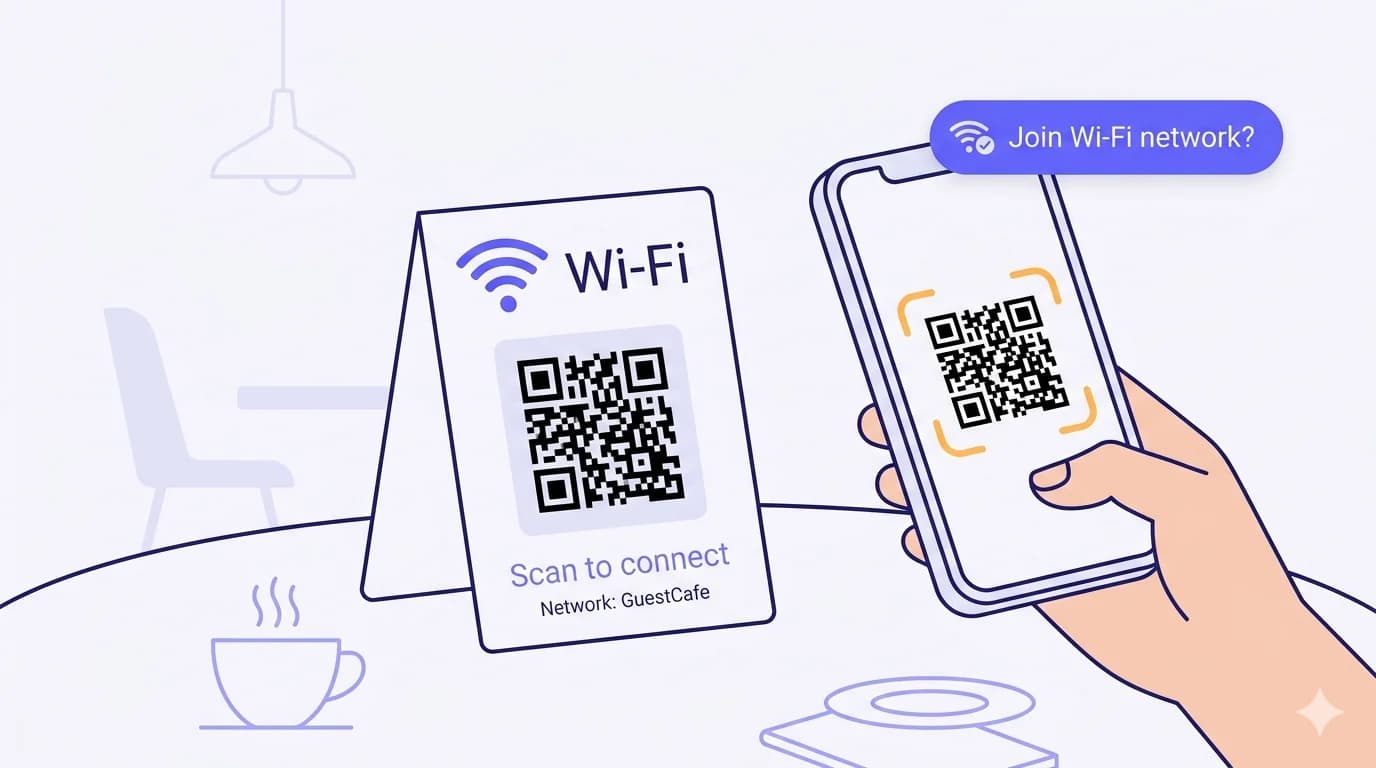
A Wi-Fi QR code is one of the most useful QR types in everyday MENA hospitality: a guest at your cafe table, hotel room, AirBnB rental, conference seat, or office reception walks up, holds their phone over the placard, and connects without typing a password. No 'what's the Wi-Fi password?' interruption, no awkward shouting across the counter, no 24-character mixed-case-and-symbols password being typed wrong on a 12-key Arabic keyboard. One tap, one connection.
The setup takes a minute. The trap that catches almost everyone is the password-encoding edge case — Arabic characters in the password, certain special symbols, leading or trailing spaces, all silently break the QR for a meaningful percentage of phones that try to scan it. This guide walks through the full setup and then the edge cases that determine whether your Wi-Fi QR works for every guest or just for some of them.
What's actually in a Wi-Fi QR code
Before the wizard, the structural detail. A Wi-Fi QR encodes a single text string in this format:
WIFI:S:NetworkName;T:WPA;P:YourPassword;H:false;;
Where:
- S — your network's SSID (the visible name).
- T — the security type: WPA (covers WPA, WPA2, WPA3), WEP (legacy, avoid), or nopass (open network with no password).
- P — the password itself.
- H — true if the network is hidden, false if it broadcasts the SSID. Default: false; you can usually omit if not hidden.
- Trailing double-semicolon — required closer.
Most QR generators (QRA included) hide this structure behind a Wi-Fi-type wizard that asks for SSID, password, security type, and hidden-or-not. You don't need to type the raw format. But knowing what's underneath helps when something goes wrong.
The four-step setup (QRA wizard or any reputable generator)
Step 1 — Choose Wi-Fi as the QR type
In QRA's QR-type picker, select 'Wi-Fi'. The wizard switches to a form with the four fields below. Other reputable QR generators have similar wizards — the field set is essentially universal.
Step 2 — Enter the SSID exactly as your router broadcasts it
The network name (SSID) must match your router's broadcast exactly — case-sensitive, special characters preserved, no leading or trailing spaces. If your router shows 'GuestNetwork' and you type 'guestnetwork' or 'Guest Network', the QR will scan but the phone will fail to find the matching network and silently abandon the connection. Copy-paste from your router admin page if possible; verify with the same phone's Wi-Fi list to confirm the exact spelling.
Step 3 — Enter the password (and here's where the trap hits)
Type the password exactly. The trap section below covers what characters cause problems and how to handle them. For now: type it, verify by reading it back, and have a colleague verify by reading it back independently. Password typos are the single biggest cause of 'why doesn't this Wi-Fi QR work' tickets.
Step 4 — Pick the security type and generate
Choose WPA/WPA2/WPA3 (use 'WPA' in the QR — the encoding doesn't distinguish between WPA2 and WPA3, the phone negotiates the actual protocol with the router). If you have a genuinely password-less guest network, choose 'nopass'. Avoid WEP — it's broken and shouldn't be in use anywhere in 2026, and if your router still uses it, upgrade the network before printing any QR. Generate, scan-test from your own phone before printing, then print.
The trap: special characters in the password
Here's the part the wizard usually doesn't warn you about. The Wi-Fi QR encoding format uses specific characters as structural delimiters — semicolon (;), backslash (\), double-quote ("), and colon (:). If any of these appear inside your SSID or password without proper escaping, the QR encodes correctly but a percentage of phones parse it incorrectly and connect to the wrong network or fail outright.
Characters that must be escaped (the spec) — and which generators get wrong
The Wi-Fi QR spec says: any literal '\', ';', ',', '"', or ':' in the SSID or password should be preceded by a backslash escape character (so a literal semicolon becomes '\;'). Good generators handle this for you. Bad generators (and a surprising number of 'top-listed free QR generator' websites) don't, and the result is intermittent: the QR scans fine, but a Samsung phone interprets the encoding strictly and refuses to connect while an iPhone is permissive and connects fine. Or vice versa. The asymmetry makes the bug hard to diagnose.
Arabic characters in the password — works, but with caveats
Yes, you can use Arabic characters in a Wi-Fi password, and the Wi-Fi QR format supports UTF-8 encoding. But: many phones, especially older Android devices, do not handle UTF-8 password decoding from QR cleanly. The QR encodes the Arabic password correctly, the phone reads the password as some-mangled-bytes, the router rejects the connection, the user sees 'Wrong password' on their phone, and there's no way to debug. The practical recommendation: avoid Arabic, Hebrew, or other non-ASCII characters in any Wi-Fi password that needs to work via QR. Use ASCII (A-Z, a-z, 0-9, ASCII-safe symbols) for the password, regardless of how multilingual the rest of your venue is.
Leading/trailing spaces
A space at the start or end of an SSID or password is invisible to humans and devastating to QR-scan reliability. Most QR generators trim whitespace; some don't. Copy-paste from a chat message or an email is the most common source of accidental leading/trailing spaces. Check your inputs character-by-character; if you can't tell, retype the password manually in the wizard rather than pasting.
Symbols and ASCII edge cases
ASCII symbols that pass the spec but cause occasional issues: ampersand (&), percent (%), hash (#), the backtick character (`). They're allowed, but a small percentage of phones — particularly older Huawei and Oppo models with regional firmware — mishandle them. For maximum portability across phone models, prefer passwords with letters, digits, hyphen, underscore, and exclamation. If you're starting fresh with a guest network specifically for QR distribution, set the password to something like 'guest-cafe-2026!' rather than a security-team-favoured 'Gu3$t%C4f3!'.
Practical Wi-Fi QR placement tips
Guest-network only
Never QR-publish your main internal Wi-Fi password. Run a separate guest network on your router (every business-grade router and most consumer ones support this — usually under 'Guest Wi-Fi' in the admin panel) with a different SSID, a different password, and isolated from internal devices. The QR distributes the guest network only. If the guest password is compromised (and it will be, eventually — guests photograph QRs and share, or someone reverse-decodes the QR), you rotate the guest password without touching anything internal.
Rotate the guest password periodically
Pick a cadence — quarterly, monthly, after any guest event that brought 100+ unknown devices through. Generate a new QR with the new password, replace the placard. With a dynamic QR (more on this below), you don't even reprint the placard — the destination updates.
Print contrast and durability
Wi-Fi placards live in cafe environments — coffee splashes, sun bleach, sticky fingers. Print on UV-resistant material, laminate (matte, not gloss — gloss causes glare that defeats scan reliability under cafe-overhead lighting), and use a frame that can be wiped clean. Plan to replace each placard every 6-12 months in high-traffic cafe environments.
Pair with bilingual text
MENA cafe placards should display 'واي-فاي' and 'Wi-Fi' side-by-side or stacked, with a short instruction in both languages ('امسح للاتّصال' / 'Scan to connect'). The QR itself is language-neutral, but the human-readable signage isn't, and the bilingual treatment signals the venue's mixed customer base.
Static vs dynamic Wi-Fi QR
Wi-Fi QRs are slightly more nuanced for the static-vs-dynamic question than other QR types. A pure-static Wi-Fi QR encodes the WIFI:S:...P:...; string directly into the dot pattern — the phone reads the string offline and joins the network without any internet round-trip. That's elegant but inflexible: every password rotation requires a reprint.
A dynamic Wi-Fi-routed QR encodes a short URL that resolves to a one-page Wi-Fi-join handler hosted by your QR provider (or your own server). The user scans the QR, gets bounced through a tiny web page that returns the Wi-Fi credentials in the WIFI:S:...; format the OS expects, and the phone joins. The pro: rotate the password from the dashboard, every printed placard keeps working. The con: requires the phone to briefly hit the internet to fetch the handler page — fine in 99% of contexts, but theoretically clunkier than the pure-static path.
Practical recommendation: for permanent guest networks where the password rarely changes (home AirBnB rental with a hard-set password, small home office), pure-static is fine. For commercial venues that rotate guest passwords on schedule (cafes, hotels, conference venues), dynamic is the right default — the operational cost of reprinting placards every rotation will quickly outweigh the marginal latency benefit of static.
Testing your Wi-Fi QR before printing
Critical step that almost everyone skips. The print run is too expensive to debug:
- Forget the guest network on your test phone (Settings → Wi-Fi → tap the network → Forget). This removes the cached credentials so the QR has to actually work, not just remind your phone of an already-known network.
- Scan the QR with the phone's camera. Check that the 'Join Wi-Fi network?' prompt appears with the correct SSID and that the phone connects.
- Repeat with at least two more phones — ideally one iPhone, one Samsung, and one of: Xiaomi, Huawei, or Pixel. The asymmetric special-character bugs only appear when you test across manufacturers.
- Test in airplane-mode-then-back briefly between scans to fully clear connection state.
- If all three phones connect successfully, you're cleared for print.
How QRA handles Wi-Fi QR
Generate a Wi-Fi-type QR in QRA, enter SSID, password, security type (WPA/WPA2/WPA3 default), hidden-or-not toggle, then customise the QR design (colors, frame, embedded venue logo) and export as PNG or vector SVG/EPS for clean printing at any size. The destination is dynamic by default — so when you rotate the guest password next quarter, you update it once in the dashboard and every placard in the venue keeps working. Scan analytics show you which placards actually get used (the entrance placard vs the table tents vs the lobby card), informing where to invest in more signage and where to remove redundant placement.
The short answer
Pick the Wi-Fi QR type, enter SSID exactly as your router broadcasts, enter the password (ASCII characters only — no Arabic, no fancy symbols), choose WPA. Generate. Test with two or three different phones, especially one Android of mid-range vintage. Print on durable matte-finish material in your venue's house style with bilingual instruction text. Use a guest network rather than your main one, and rotate the password quarterly via dynamic QR so the placard doesn't need reprinting. Twenty minutes total. Years of one-tap guest connection in return.
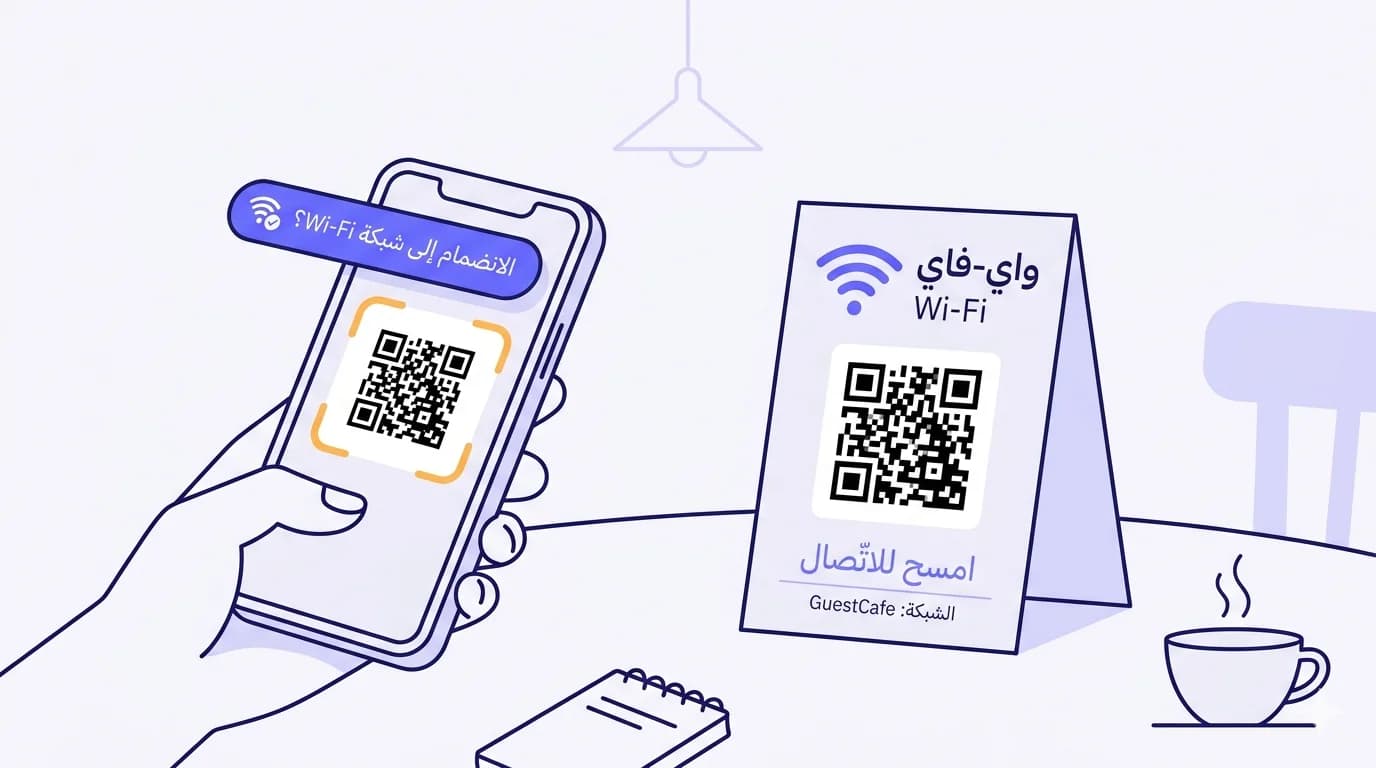
رمز QR للواي-فاي هو أحد أكثر أنواع QR فائدةً في الضيافة اليوميّة في الشرق الأوسط: ضيف على طاولة المقهى، أو في غرفة الفندق، أو في عقار إير بي إن بي مؤجَّر، أو في مقعد مؤتمر، أو في استقبال مكتب يقترب، يحمل هاتفه فوق اللافتة، ويتّصل دون كتابة كلمة سرّ. لا انقطاع بـ«ما هي كلمة سرّ الواي-فاي؟»، لا صياح محرج عبر الكاونتر، لا كلمة سرّ من ٢٤ محرفاً بأحرف كبيرة وصغيرة ورموز تُكتب خاطئة على لوحة مفاتيح عربيّة. نقرة واحدة، اتّصال واحد.
الإعداد يستغرق دقيقة. أمّا الفخّ الذي يقع فيه الجميع تقريباً فهو حالة الترميز الطرفيّة لكلمة السرّ — الحروف العربيّة في كلمة السرّ، رموز خاصّة معيّنة، المسافات الافتتاحيّة أو الختاميّة، كلّها تكسر الرمز بصمت لنسبة ملموسة من الهواتف التي تحاول مسحه. هذا الدليل يمشي عبر الإعداد الكامل ثمّ الحالات الطرفيّة التي تحدّد ما إذا كان رمز QR الخاصّ بك للواي-فاي يعمل لكلّ ضيف أم لبعضهم فقط.
ما الذي يحتويه فعلاً رمز QR للواي-فاي
قبل المعالج، التفصيل الهيكلي. رمز QR للواي-فاي يرمز سلسلة نصّيّة واحدة بهذه الصيغة:
WIFI:S:NetworkName;T:WPA;P:YourPassword;H:false;;
حيث:
- S — اسم شبكتك (SSID) الظاهر.
- T — نوع الأمان: WPA (يغطّي WPA و WPA2 و WPA3)، WEP (قديم، تجنّبه)، أو nopass (شبكة مفتوحة بلا كلمة سرّ).
- P — كلمة السرّ نفسها.
- H — true إن كانت الشبكة مخفيّة، false إن كانت تبثّ الاسم. الافتراضي: false؛ يمكنك عادةً حذفه إن لم تكن مخفيّة.
- الفاصلة المنقوطة المزدوجة الختاميّة — مُغلِق مطلوب.
معظم مولّدات QR (QRA منها) تخفي هذه البنية وراء معالج من نوع واي-فاي يطلب SSID وكلمة سرّ ونوع الأمان ومخفيّة-أم-لا. لست بحاجة إلى كتابة الصيغة الخامّ. لكن معرفة ما تحتها يساعد حين يحدث خطأ ما.
الإعداد بأربع خطوات (معالج QRA أو أيّ مولّد محترم)
الخطوة ١ — اختر واي-فاي كنوع QR
في منتقي نوع QR في QRA، اختر «واي-فاي». ينتقل المعالج إلى نموذج بالحقول الأربعة أدناه. مولّدات QR المحترمة الأخرى لها معالجات مشابهة — مجموعة الحقول عمليّاً عالميّة.
الخطوة ٢ — أدخل SSID تماماً كما يبثّه راوترك
يجب أن يطابق اسم الشبكة (SSID) بثّ راوترك بدقّة — حسّاس لحالة الأحرف، الرموز الخاصّة محفوظة، بلا مسافات افتتاحيّة أو ختاميّة. إن كان راوترك يعرض «GuestNetwork» وكتبت «guestnetwork» أو «Guest Network»، سيُمسح الرمز لكنّ الهاتف سيفشل في إيجاد الشبكة المطابقة ويتخلّى عن الاتّصال بصمت. انسخ-والصق من صفحة إدارة الراوتر إن أمكن؛ تحقّق من قائمة واي-فاي للهاتف نفسه لتأكيد الكتابة الدقيقة.
الخطوة ٣ — أدخل كلمة السرّ (وهنا يضرب الفخّ)
اكتب كلمة السرّ بدقّة. قسم الفخّ أدناه يغطّي أيّ الأحرف تسبّب مشاكل وكيف تتعامل معها. الآن: اكتبها، تحقّق منها بقراءتها مرّة أخرى، واطلب من زميل التحقّق بقراءتها بشكل مستقلّ. أخطاء كلمة السرّ هي السبب الأكبر الواحد لتذاكر «لماذا لا يعمل رمز QR هذا للواي-فاي».
الخطوة ٤ — اختر نوع الأمان وولّد
اختر WPA/WPA2/WPA3 (استخدم «WPA» في QR — الترميز لا يميّز بين WPA2 و WPA3، الهاتف يتفاوض على البروتوكول الفعلي مع الراوتر). إن كانت لديك شبكة ضيوف بلا كلمة سرّ فعلاً، اختر «nopass». تجنّب WEP — هو مكسور ولا يجب أن يكون مستخدماً في أيّ مكان في ٢٠٢٦، وإن كان راوترك ما زال يستخدمه، رقّ الشبكة قبل طباعة أيّ رمز QR. ولّد، اختبر-المسح من هاتفك قبل الطباعة، ثمّ اطبع.
الفخّ: الأحرف الخاصّة في كلمة السرّ
هنا الجزء الذي لا يحذّرك منه المعالج عادةً. صيغة ترميز QR للواي-فاي تستخدم أحرفاً محدّدة كفواصل هيكليّة — الفاصلة المنقوطة (;)، الشرطة المائلة الخلفيّة (\)، علامة الاقتباس المزدوجة (")، والنقطتان (:). إن ظهر أيّ من هذه داخل SSID أو كلمة السرّ دون تعشيق صحيح، يُرمَّز QR بشكل صحيح لكنّ نسبة من الهواتف تحلّله بشكل غير صحيح وتتّصل بالشبكة الخاطئة أو تفشل تماماً.
الأحرف التي يجب تعشيقها (المواصفات) — وأيّ المولّدات تخطئ
تقول مواصفات QR للواي-فاي: أيّ «\»، «;»، «,»، «"»، أو «:» حرفي في SSID أو كلمة السرّ يجب أن يسبقه حرف شرطة مائلة خلفيّة للتعشيق (فالفاصلة المنقوطة الحرفيّة تصبح «\;»). المولّدات الجيّدة تتعامل مع هذا نيابةً عنك. المولّدات السيّئة (وعدد مفاجئ من مواقع «أفضل مولّد QR مجّاني») لا تفعل، والنتيجة متذبذبة: يُمسح الرمز بشكل جيّد، لكنّ هاتف سامسونغ يفسّر الترميز بصرامة ويرفض الاتّصال بينما يكون الآيفون متسامحاً ويتّصل بشكل جيّد. أو العكس. عدم التماثل يجعل الخطأ صعب التشخيص.
الأحرف العربيّة في كلمة السرّ — تعمل، لكن بتحفّظات
نعم، يمكنك استخدام أحرف عربيّة في كلمة سرّ واي-فاي، وصيغة QR للواي-فاي تدعم ترميز UTF-8. لكن: كثير من الهواتف، خاصّةً أجهزة أندرويد الأقدم، لا تتعامل مع فكّ ترميز كلمة سرّ UTF-8 من QR بنظافة. يرمز QR كلمة السرّ العربيّة بشكل صحيح، يقرأ الهاتف كلمة السرّ كبعض-البايتات-المشوّشة، يرفض الراوتر الاتّصال، يرى المستخدم «كلمة سرّ خاطئة» على هاتفه، ولا توجد طريقة للتصحيح. التوصية العمليّة: تجنّب العربيّة، العبريّة، أو غيرها من الأحرف غير ASCII في أيّ كلمة سرّ واي-فاي تحتاج إلى العمل عبر QR. استخدم ASCII (A-Z، a-z، 0-9، رموز آمنة بـ ASCII) لكلمة السرّ، بغضّ النظر عن مدى تعدّد لغات بقيّة موقعك.
المسافات الافتتاحيّة/الختاميّة
المسافة في بداية أو نهاية SSID أو كلمة السرّ غير مرئيّة للبشر ومدمّرة لموثوقيّة مسح QR. معظم مولّدات QR تقطع المسافات الفارغة؛ بعضها لا يفعل. النسخ-واللصق من رسالة دردشة أو بريد إلكتروني هو أكثر مصدر شائع للمسافات الافتتاحيّة/الختاميّة العرضيّة. تحقّق من مدخلاتك حرفاً-حرفاً؛ إن لم تستطع التمييز، أعد كتابة كلمة السرّ يدويّاً في المعالج بدلاً من لصقها.
الرموز وحالات ASCII الطرفيّة
رموز ASCII التي تمرّ بالمواصفات لكنّها تسبّب مشاكل عرضيّة: الأمبرسند (&)، النسبة المئويّة (%)، الهاش (#)، حرف الفاصلة العليا الخلفيّة (`). مسموح بها، لكنّ نسبة صغيرة من الهواتف — خاصّةً موديلات هواوي وأوبو الأقدم بأنظمة إقليميّة — تسيء التعامل معها. لأقصى قابليّة نقل عبر موديلات الهواتف، فضّل كلمات سرّ بحروف وأرقام وشرطة وشرطة-سفليّة وعلامة تعجّب. إن كنت تبدأ من الصفر بشبكة ضيوف خاصّة لتوزيع QR، اضبط كلمة السرّ على شيء مثل «guest-cafe-2026!» بدلاً من «Gu3$t%C4f3!» المفضّلة لدى فريق الأمن.
نصائح عمليّة لموضع QR للواي-فاي
شبكة ضيوف فقط
لا تنشر أبداً كلمة سرّ واي-فاي الداخليّة الرئيسيّة عبر QR. شغّل شبكة ضيوف منفصلة على راوترك (كلّ راوتر من مستوى الأعمال ومعظم الراوترات الاستهلاكيّة يدعمه — عادةً تحت «واي-فاي الضيوف» في لوحة الإدارة) باسم مختلف وكلمة سرّ مختلفة ومعزولة عن الأجهزة الداخليّة. يوزّع QR شبكة الضيوف فقط. إن تعرّضت كلمة سرّ الضيوف للاختراق (وستفعل في النهاية — يصوّر الضيوف QR ويشاركونه، أو يفكّ أحد الترميز عكسيّاً)، تدوّر كلمة سرّ الضيوف دون لمس أيّ شيء داخلي.
دوّر كلمة سرّ الضيوف دوريّاً
اختر إيقاعاً — ربع سنوي، شهري، بعد أيّ مناسبة ضيوف جلبت ١٠٠+ جهازاً غير معروف. ولّد رمز QR جديداً بكلمة السرّ الجديدة، استبدل اللافتة. مع رمز QR ديناميكي (المزيد عن هذا أدناه)، لا تحتاج حتّى إلى إعادة طباعة اللافتة — تتحدّث الوجهة.
تباين الطباعة والمتانة
لافتات الواي-فاي تعيش في بيئات المقاهي — رشّات قهوة، تبييض شمس، أصابع لاصقة. اطبع على مادّة مقاومة للأشعّة فوق البنفسجيّة، غلِّف (مطفأ، لا لامع — اللامع يسبّب وهجاً يهزم موثوقيّة المسح تحت إضاءة المقهى العلويّة)، واستخدم إطاراً يمكن مسحه. خطّط لاستبدال كلّ لافتة كلّ ٦-١٢ شهراً في بيئات المقاهي عالية الحركة.
اقرن بالنصّ ثنائي اللغة
لافتات مقاهي الشرق الأوسط يجب أن تعرض «واي-فاي» و«Wi-Fi» جنباً إلى جنب أو مرصوفتَين، مع تعليمات قصيرة بكلتا اللغتَين («امسح للاتّصال» / «Scan to connect»). الرمز نفسه محايد لغويّاً، لكنّ اللافتة المقروءة بشريّاً ليست كذلك، والمعالجة ثنائيّة اللغة تشير إلى قاعدة عملاء الموقع المختلطة.
الثابت مقابل الديناميكي لـ QR الواي-فاي
رموز QR للواي-فاي أكثر دقّةً قليلاً لسؤال الثابت-مقابل-الديناميكي من أنواع QR الأخرى. رمز QR للواي-فاي الثابت البحت يرمز سلسلة WIFI:S:...P:...; مباشرةً في نمط النقاط — يقرأ الهاتف السلسلة دون اتّصال وينضمّ إلى الشبكة دون أيّ ذهاب-وإياب إلى الإنترنت. هذا أنيق لكنّه غير مرن: كلّ تدوير كلمة سرّ يتطلّب إعادة طباعة.
رمز QR الواي-فاي الموجَّه ديناميكيّاً يرمز رابطاً مختصراً يحلّ إلى صفحة واحدة لتولّي انضمام الواي-فاي مستضافة من قِبَل مزوّد QR لديك (أو خادمك الخاصّ). يمسح المستخدم QR، يتمّ توجيهه عبر صفحة ويب صغيرة تعيد بيانات الواي-فاي بصيغة WIFI:S:...; التي يتوقّعها نظام التشغيل، وينضمّ الهاتف. الإيجابي: دوّر كلمة السرّ من لوحة التحكّم، تبقى كلّ لافتة مطبوعة تعمل. السلبي: يتطلّب من الهاتف الوصول إلى الإنترنت بإيجاز لجلب صفحة المُعالِج — جيّد في ٩٩٪ من السياقات، لكنّه نظريّاً أثقل من المسار الثابت البحت.
التوصية العمليّة: لشبكات الضيوف الدائمة حيث تتغيّر كلمة السرّ نادراً (عقار إير بي إن بي منزلي بكلمة سرّ ثابتة، مكتب منزلي صغير)، الثابت البحت جيّد. للمواقع التجاريّة التي تدوّر كلمات سرّ الضيوف وفق جدول (مقاهي، فنادق، قاعات مؤتمرات)، الديناميكي هو الافتراضي الصحيح — التكلفة التشغيليّة لإعادة طباعة اللافتات عند كلّ تدوير ستفوق بسرعة فائدة زمن الاستجابة الهامشيّة للثابت.
اختبار QR الواي-فاي قبل الطباعة
خطوة حرجة يتخطّاها الجميع تقريباً. دفعة الطباعة باهظة جدّاً للتصحيح:
- انسَ شبكة الضيوف على هاتفك الاختباري (الإعدادات → واي-فاي → اضغط الشبكة → نسيان). هذا يزيل البيانات المخزّنة فيُضطرّ QR إلى العمل فعليّاً، لا فقط تذكير هاتفك بشبكة معروفة بالفعل.
- امسح QR بكاميرا الهاتف. تحقّق من ظهور موجّه «الانضمام إلى شبكة Wi-Fi؟» بـ SSID الصحيح وأنّ الهاتف يتّصل.
- كرّر مع هاتفَين آخرَين على الأقلّ — يفضّل آيفون واحد، سامسونغ واحد، وواحد من: شاومي، هواوي، أو بكسل. أخطاء الأحرف الخاصّة غير المتماثلة تظهر فقط حين تختبر عبر المصنّعين.
- اختبر بوضع الطيران-ثمّ-العودة بإيجاز بين المسحات لمسح حالة الاتّصال بالكامل.
- إن اتّصلت الهواتف الثلاثة بنجاح، فأنت جاهز للطباعة.
كيف تتعامل QRA مع QR الواي-فاي
ولّد QR من نوع واي-فاي في QRA، أدخل SSID، كلمة السرّ، نوع الأمان (WPA/WPA2/WPA3 افتراضي)، زرّ مخفي-أم-لا، ثمّ خصّص تصميم QR (ألوان، إطار، شعار موقع مدمج) وصدّر بصيغة PNG أو SVG/EPS متّجهي للطباعة النظيفة بأيّ حجم. الوجهة ديناميكيّة افتراضيّاً — لذا حين تدوّر كلمة سرّ الضيوف الربع القادم، تحدّثها مرّة في لوحة التحكّم وتبقى كلّ لافتة في الموقع تعمل. تحليلات المسح تُريك أيّ اللافتات تُستخدم فعلاً (لافتة المدخل مقابل حاملات الطاولات مقابل بطاقة البهو)، فتُعلِم أين تستثمر في مزيد من اللافتات وأين تزيل الموضع الزائد.
الإجابة المختصرة
اختر نوع QR للواي-فاي، أدخل SSID تماماً كما يبثّه راوترك، أدخل كلمة السرّ (أحرف ASCII فقط — لا عربيّة، لا رموز فاخرة)، اختر WPA. ولّد. اختبر بهاتفَين أو ثلاثة مختلفة، خاصّةً واحد أندرويد متوسّط العمر. اطبع على مادّة مطفأة الإنهاء متينة بأسلوب موقعك الرسمي مع نصّ تعليمات ثنائي اللغة. استخدم شبكة ضيوف بدلاً من الرئيسيّة، ودوّر كلمة السرّ ربع سنويّاً عبر QR ديناميكي بحيث لا تحتاج اللافتة إلى إعادة طباعة. عشرون دقيقة في المجموع. سنوات من اتّصال الضيف بنقرة واحدة في المقابل.
Ready to make a smarter QR?جاهز لإنشاء رمز QR أذكى؟
Sign up free — no card needed. Track every scan, edit destinations anytime.سجّل مجاناً — بدون بطاقة. تتبّع كل عملية مسح وعدّل الوجهة في أي وقت.