PNG, SVG, EPS, or PDF? Which QR Code Export to Send to Your PrinterPNG أم SVG أم EPS أم PDF؟ ما صيغة تصدير QR التي ترسلها إلى المطبعة
Raster vs. vector, screen vs. print, modern vs. legacy. A plain-English guide to the four QR export formats — and the one rule that decides which to use.نقطي أم متّجهي، شاشة أم طباعة، حديث أم تقليدي. دليل مبسّط لصيغ تصدير QR الأربع — والقاعدة الواحدة التي تحدّد أيّها تستخدم.
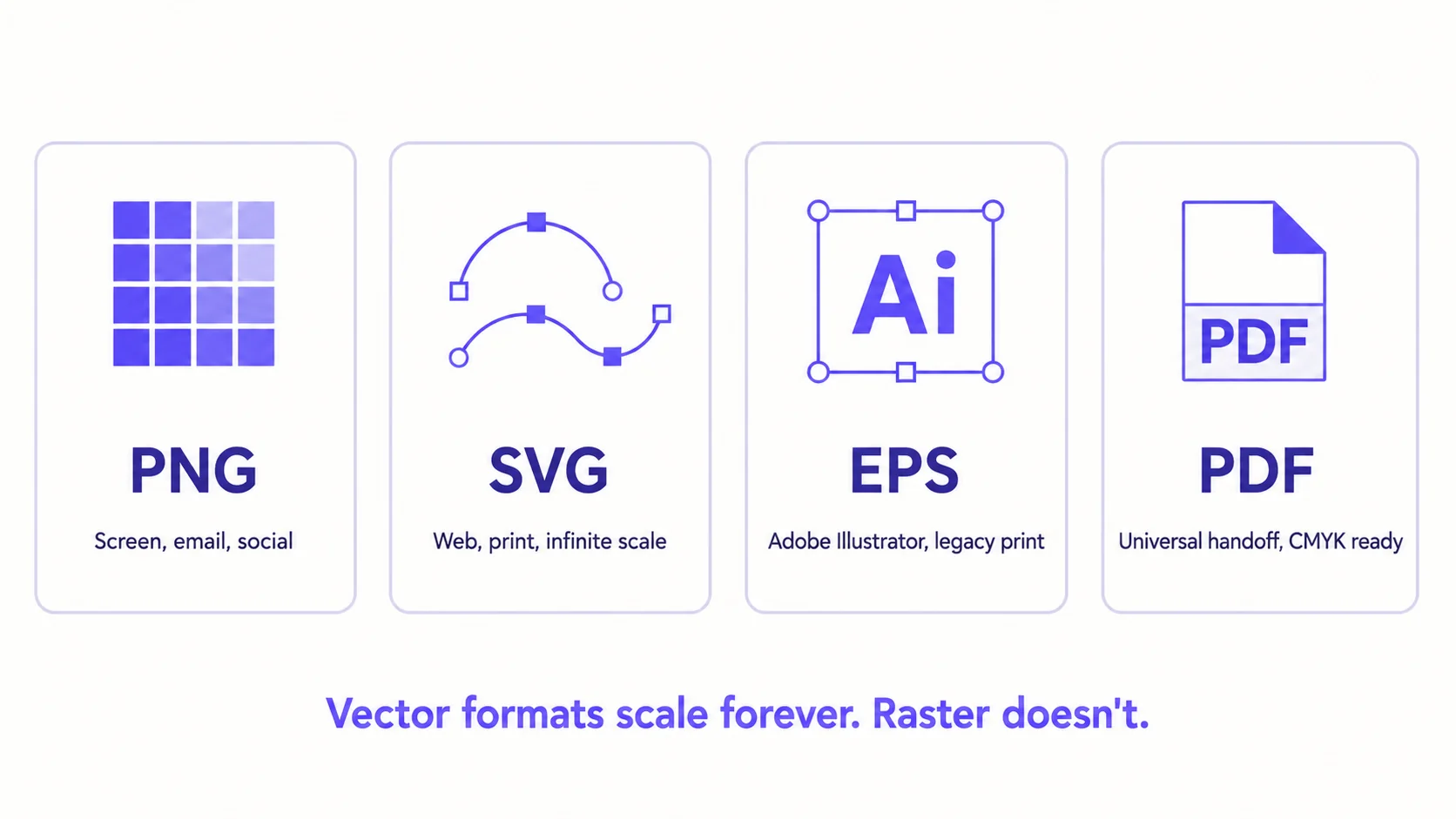
When you finish designing a QR code, the export step usually presents you with four options: PNG, SVG, EPS, and PDF. Pick the wrong one and your printer either calls you back asking for a different file, or — worse — prints what you sent, blurry, and hands it to your client. This is a short, opinionated guide to which to send where, and why.
The single rule that decides everything
Vector formats scale to any size without losing sharpness. Raster formats don’t. If the code will be printed at any size you can’t fully predict — and most print jobs grow at the last minute — you want a vector format. If it’s only ever going to live on a screen at a fixed pixel size, raster is fine. That single rule disposes of about 80% of the decision.
PNG — for screens, email, and social
PNG is a raster format: a grid of pixels. The file knows exactly how many pixels wide it is and what colour each one is, and that’s all. Zoom in past the file’s native resolution and the image gets blurry because there’s nothing in the file to fill in the gaps.
Use PNG when the QR will live on a screen at a known size: a website hero image, a Twitter post, an email signature, a slide deck. Export at 2-3× the display size so the image stays crisp on high-DPI screens (Retina, modern Android, 4K monitors). Never send a PNG to a printer unless you know the exact print size and have exported at 300 DPI for that size.
SVG — the modern print and web default
SVG is a vector format described as XML. The file describes shapes (lines, rectangles, paths) rather than pixels, so the image renders perfectly sharp at any size — 1 cm or 10 metres, same file. Modern browsers render SVG natively; modern print software handles it; CSS can style it. SVG is the most versatile of the four formats.
Use SVG for any web embedding where you’d previously have used PNG, and for any print job where you’d previously have used EPS or PDF. It’s smaller than the equivalent raster, scales infinitely, and is the standard the print industry has been moving toward for a decade.
EPS — the legacy print workflow
EPS (Encapsulated PostScript) is the older vector format that ruled professional print for thirty years before SVG took over. Many large print shops, signage companies, and old-school production workflows still ask for EPS because their pipelines are built around Adobe Illustrator and legacy RIPs (Raster Image Processors) that handle EPS natively.
Use EPS when your print shop explicitly asks for it. Otherwise prefer SVG or PDF. EPS files are larger than SVG, less web-friendly, and require Illustrator (or a converter) to open easily, so they’re a workflow choice driven by the printer’s requirements, not yours.
PDF — universal handoff
PDF is the lingua franca of file delivery. It can carry vector graphics, raster images, fonts, colour profiles, and metadata all in one container. Crucially for print, a PDF can be exported with a CMYK colour profile (the four-ink process model used by most printers) instead of RGB (the model used by screens). Sending the right colour profile prevents the green-vs-cyan or red-vs-magenta surprises that ruin client deliveries.
Use PDF for universal delivery — when you don’t know which software the recipient will use, when you need to embed extras like crop marks or bleed, or when the recipient explicitly asked for a print-ready file with CMYK. PDF is also what most modern print bureaus prefer over EPS for new jobs.
A practical recipe
- On a screen at a known size — PNG.
- On the web at any size, or print where you control the workflow — SVG.
- Sending to an Adobe-Illustrator-based legacy print shop that asks for it — EPS.
- Print delivery where you don’t know the recipient’s software, or you need CMYK — PDF.
- Sending to a printer and unsure which they prefer — ask. They will tell you, and the answer is usually PDF or SVG in 2026.
Common pitfalls
- Exporting a tiny PNG and asking the printer to scale it up. PNG can’t scale up. The printer will print what you sent — blurry.
- Exporting RGB when the printer needs CMYK. The colours will shift visibly. PDF lets you control this; PNG and SVG default to RGB.
- Forgetting the quiet zone. Whichever format you export in, the QR specification requires a clear margin of at least four modules around the code. Export with the quiet zone included.
- Using a screenshot of a QR as your delivery file. Screenshots are PNG at screen DPI, lose information at the edges, and are usually too low resolution to print acceptably.
How QRA handles it
QRA exports all four formats from one dialog. PNG is the default for screen use and ships at a sensible high-DPI size. SVG, EPS, and PDF are vector exports that include the quiet zone automatically. PDF can be exported as PDF-CMYK when you need print-ready colour. Whichever format your designer or printer asks for, the file is one click away — and the QR design (colours, frame, logo, error-correction level) is preserved across all four.
The short answer
Screen — PNG. Web or modern print — SVG. Legacy print shop with an Adobe workflow — EPS. Universal print handoff, especially with CMYK — PDF. When in doubt, ask the printer, and prefer vector over raster.
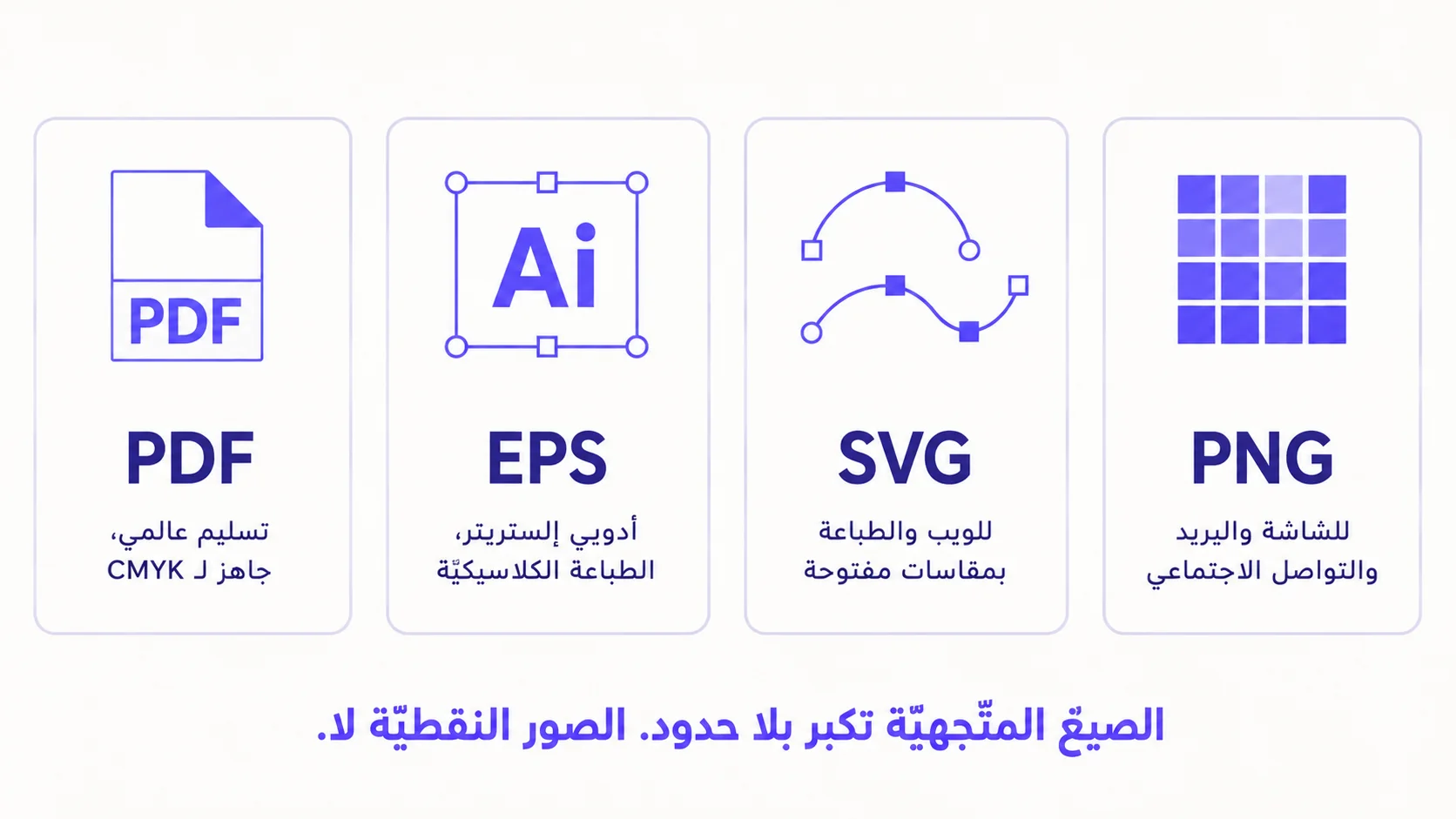
حين تنتهي من تصميم رمز QR، عادةً ما تعرض عليك خطوة التصدير أربعة خيارات: PNG وSVG وEPS وPDF. اختر الصيغة الخطأ، ومطبعتك إمّا تتّصل بك تطلب ملفّاً آخر، أو — والأسوأ — تطبع ما أرسلته باهتاً وتسلّمه إلى عميلك. هذا دليل قصير وحاسم لأيّ صيغة ترسلها إلى أين، ولماذا.
القاعدة الواحدة التي تحسم كلّ شيء
الصيغ المتّجهيّة تتكبّر إلى أيّ حجم دون أن تفقد حدّتها. الصيغ النقطيّة لا تستطيع. إن كان الرمز سيُطبع بأيّ حجم لا تستطيع التنبّؤ به تماماً — ومعظم أعمال الطباعة يتغيّر مقاسها في اللحظات الأخيرة — فأنت تحتاج صيغة متّجهيّة. وإن كان سيعيش على شاشة بمقاس بكسلي ثابت فقط، فالصيغة النقطيّة تكفي. هذه القاعدة الواحدة تحسم نحو ٨٠٪ من القرار.
PNG — للشاشة والبريد والتواصل الاجتماعي
PNG صيغة نقطيّة: شبكة بكسلات. الملفّ يعرف بالضبط عدد البكسلات في عرضه ولون كلّ منها، ولا شيء آخر. كبّر فوق الدقّة الأصلية للملفّ يصبح ضبابيّاً، لأنّه لا يوجد في الملفّ ما يملأ الفراغات.
استخدم PNG حين يعيش الرمز على شاشة بحجم معروف: صورة رئيسيّة لموقع، منشور تويتر، توقيع بريد إلكتروني، شريحة عرض. صدّر بحجم ٢-٣ أضعاف حجم العرض ليبقى الرمز حادّاً على شاشات الدقّة العالية (Retina، أندرويد الحديث، شاشات 4K). لا ترسل PNG إلى مطبعة أبداً ما لم تعرف مقاس الطباعة بالضبط وتصدّر بـ ٣٠٠ DPI لذلك المقاس.
SVG — الخيار الافتراضي الحديث للويب والطباعة
SVG صيغة متّجهيّة موصوفة بـ XML. الملفّ يصف أشكالاً (خطوط، مستطيلات، مسارات) لا بكسلات، فترسم الصورة بحدّة كاملة بأيّ حجم — ١ سم أو ١٠ أمتار، الملف نفسه. تعرضها المتصفّحات الحديثة بشكل أصلي، وتتعامل معها برامج الطباعة الحديثة، وتستطيع CSS تنسيقها. SVG هو الأكثر مرونة بين الصيغ الأربع.
استخدم SVG لأيّ تضمين على الويب كنت تستخدم له PNG، ولأيّ مهمّة طباعة كنت تستخدم لها EPS أو PDF. أصغر من النقطيّة المقابلة، يتكبّر بلا حدود، وهو المعيار الذي تتّجه إليه صناعة الطباعة منذ عقد.
EPS — تدفّق العمل التقليدي للطباعة
EPS (Encapsulated PostScript) هي الصيغة المتّجهيّة الأقدم التي سيطرت على الطباعة المهنيّة لثلاثين عاماً قبل أن يستلم SVG. كثير من المطابع الكبيرة وشركات اللافتات وتدفّقات الإنتاج التقليديّة لا تزال تطلب EPS لأنّ خطوط أنابيبها مبنيّة حول Adobe Illustrator وأجهزة RIP (معالجات الصورة النقطيّة) القديمة التي تتعامل مع EPS أصليّاً.
استخدم EPS حين تطلبه مطبعتك صراحةً. وإلّا فضّل SVG أو PDF. ملفّات EPS أكبر من SVG، وأقلّ ودّاً مع الويب، وتحتاج إلى Illustrator (أو محوّل) لفتحها بسهولة، فهي اختيار يفرضه متطلّب المطبعة لا اختيارك أنت.
PDF — تسليم شامل
PDF هي اللغة المشتركة لتسليم الملفّات. تستطيع حمل رسوم متّجهيّة وصور نقطيّة وخطوط وملفّات تعريف ألوان وبيانات وصفيّة، كلّها في حاوية واحدة. والأهمّ للطباعة: يمكن تصدير PDF بملفّ تعريف ألوان CMYK (نموذج الأحبار الأربعة الذي تستخدمه معظم المطابع) بدلاً من RGB (نموذج الشاشات). إرسال ملفّ تعريف الألوان الصحيح يمنع مفاجآت «الأخضر مقابل السماوي» أو «الأحمر مقابل الأرجواني» التي تفسد التسليم للعميل.
استخدم PDF للتسليم الشامل — حين لا تعرف أيّ برنامج سيستخدم المستلم، أو حين تحتاج إلى تضمين علامات قطع أو خطوط نزيف، أو حين يطلب المستلم صراحةً ملفّاً جاهزاً للطباعة بـ CMYK. وهو أيضاً ما تفضّله معظم مكاتب الطباعة الحديثة على EPS للمهام الجديدة.
وصفة عمليّة
- على شاشة بمقاس معروف — PNG.
- على الويب بأيّ مقاس، أو طباعة تتحكّم بتدفّق عملها — SVG.
- إرسال إلى مطبعة تقليديّة تعتمد على Adobe Illustrator وتطلبها — EPS.
- تسليم للطباعة لا تعرف برنامج المستلم، أو تحتاج إلى CMYK — PDF.
- إرسال إلى مطبعة لست متأكّداً ممّا تفضّله — اسألها. ستخبرك، والإجابة في ٢٠٢٦ عادةً PDF أو SVG.
أخطاء شائعة
- تصدير PNG صغير وطلب من المطبعة تكبيره. PNG لا يستطيع التكبير. ستطبع المطبعة ما أرسلت — باهتاً.
- تصدير RGB والمطبعة تحتاج CMYK. ستتحوّل الألوان بشكل ملحوظ. PDF يتيح لك التحكّم بهذا؛ PNG وSVG يفترضان RGB افتراضيّاً.
- نسيان المنطقة الهادئة. أيّاً كانت الصيغة التي تصدّرها، تتطلّب مواصفة QR هامشاً صافياً لا يقلّ عن أربع وحدات حول الرمز. صدّر مع تضمين المنطقة الهادئة.
- استخدام لقطة شاشة لرمز QR كملفّ تسليم. لقطات الشاشة هي PNG بدقّة الشاشة، تفقد معلومات عند الحواف، وعادةً ما تكون منخفضة الدقّة جدّاً لطباعة مقبولة.
كيف تتعامل QRA مع ذلك
QRA تصدّر الصيغ الأربع من مربّع حوار واحد. PNG هي الافتراضي للاستخدام على الشاشة وتُشحن بمقاس مرتفع الدقّة. SVG وEPS وPDF صيغ متّجهيّة تتضمّن المنطقة الهادئة تلقائيّاً. ويمكن تصدير PDF بصيغة PDF-CMYK حين تحتاج لون جاهز للطباعة. أيّاً كانت الصيغة التي يطلبها مصمّمك أو المطبعة، الملفّ على بُعد ضغطة واحدة — ويُحفظ تصميم الرمز (الألوان، الإطار، الشعار، مستوى تصحيح الأخطاء) في كلّ الصيغ الأربع.
الإجابة المختصرة
للشاشة — PNG. للويب أو الطباعة الحديثة — SVG. لمطبعة تقليديّة بتدفّق Adobe — EPS. للتسليم الشامل للطباعة وخصوصاً مع CMYK — PDF. وإذا ترددت، اسأل المطبعة، وفضّل المتّجهي على النقطي.
Ready to make a smarter QR?جاهز لإنشاء رمز QR أذكى؟
Sign up free — no card needed. Track every scan, edit destinations anytime.سجّل مجاناً — بدون بطاقة. تتبّع كل عملية مسح وعدّل الوجهة في أي وقت.