WhatsApp Business QR Code: The Complete MENA Guideرمز QR لواتساب للأعمال: الدليل الكامل لمنطقة الشرق الأوسط
WhatsApp is the dominant business-customer channel across MENA — from Riyadh shawarma joints to Dubai law firms to Cairo clinics. A WhatsApp Business QR code lets a customer go from poster to live chat in two taps, with a pre-filled message that tells you exactly what they want. Here's the four-step path, plus the dynamic-QR trick that lets you change phone numbers without reprinting anything.واتساب هو القناة المهيمنة بين الأعمال والعملاء في الشرق الأوسط — من مطاعم الشاورما في الرياض إلى مكاتب المحاماة في دبي إلى عيادات القاهرة. يتيح رمز QR لواتساب للأعمال أن ينتقل العميل من ملصق إلى محادثة مباشرة بنقرتين، مع رسالة مُعدّة مسبقاً تخبرك بالضبط بما يريده. إليك المسار من أربع خطوات، إضافةً إلى حيلة الـ QR الديناميكي التي تتيح لك تغيير أرقام الهواتف دون إعادة طباعة أيّ شيء.
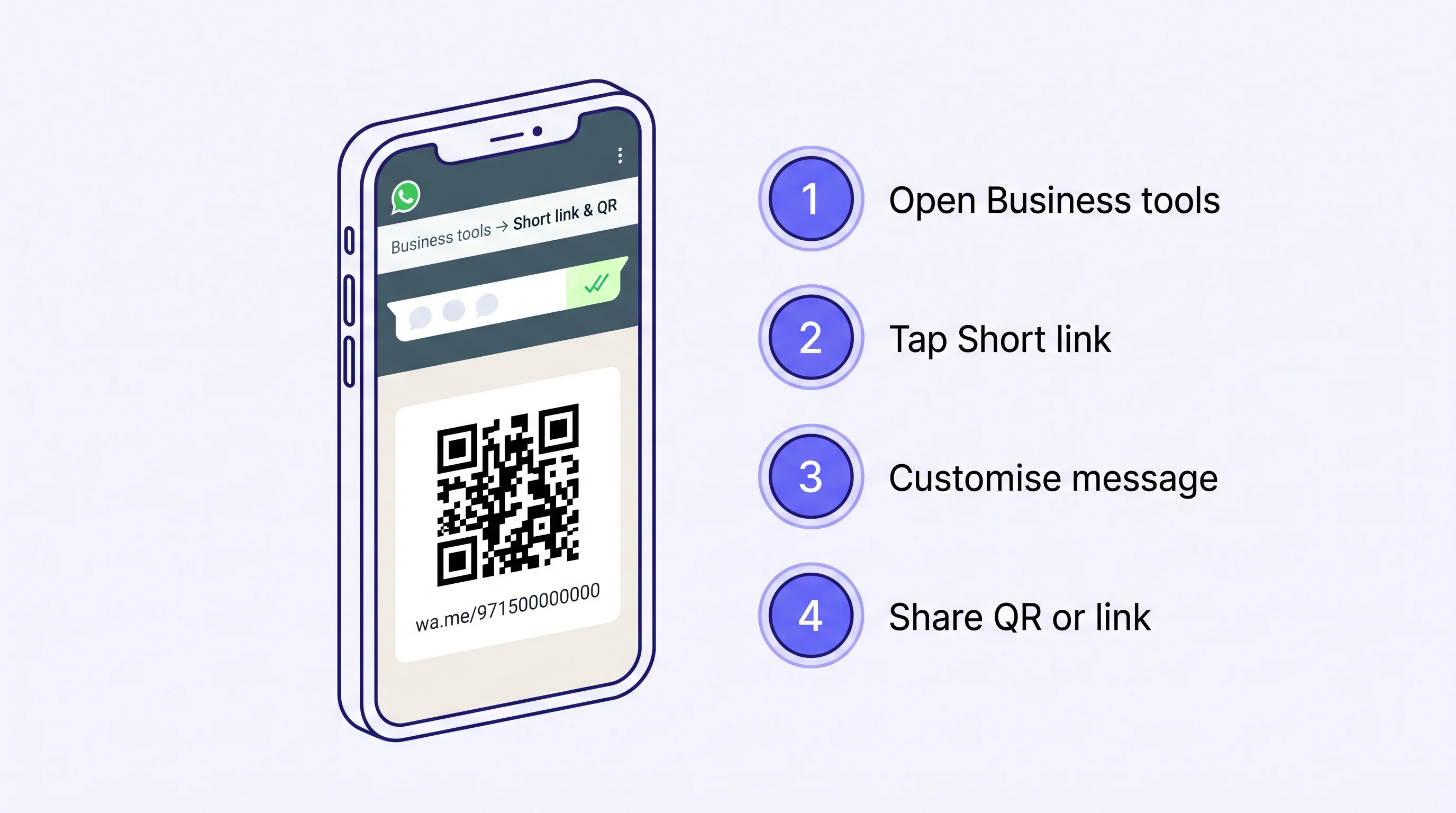
WhatsApp is the default business-to-customer channel across MENA in a way it isn't anywhere else. In Riyadh, a shawarma joint takes its delivery orders on WhatsApp before a single one comes through Jahez. In Dubai, real-estate agents handle inquiries from yard signs almost entirely through WhatsApp. In Cairo and Casablanca, clinics confirm appointments by WhatsApp message because SMS deliverability is unreliable and email is ignored. If you're running anything customer-facing in the region, your WhatsApp Business number is your second front door — and a QR code on a poster, table tent, or business card is how customers find it without having to type it.
The good news: WhatsApp Business has a built-in QR generator. The four-step path takes about a minute. The catch — and the part most tutorials don't explain — is that the QR it generates is a static link to your phone number. If you ever change phones, change businesses, or want to update the pre-filled message that opens, every printed copy of that QR becomes wrong. There's a clean fix for that, and we'll cover it after the four steps.
The four-step WhatsApp Business flow
Step 1 — Open Business tools
In the WhatsApp Business app on your phone, tap the three-dot menu (top right on Android, Settings tab on iPhone), then Business tools. This is the master panel for everything that distinguishes the Business app from regular WhatsApp — catalog, away message, quick replies, labels, and the short-link generator we want.
Don't see Business tools? You're on regular WhatsApp, not WhatsApp Business. Download WhatsApp Business from your app store — it's a separate, free app, and your number can only be registered on one of them at a time. If you currently use the same phone number for personal and business, you'll need two phones, dual-SIM, or a separate business line before you can run the Business app properly.
Step 2 — Tap Short link
Under Business tools, find 'Short link'. Tapping it shows your wa.me URL — it looks like wa.me/971500000000 with your country code and number — and below that, two actions: 'Share link' and 'View QR code'. This is your customer-facing entry point. The wa.me URL works in any browser; clicking it opens WhatsApp directly to a chat with you.
On iPhone the option may be labelled 'Short link', on Android 'Short link' or 'Click to chat' — same screen, slightly different copy. If your version of the app puts these inside 'Settings → Business tools → Short link', that's the same thing, just rearranged.
Step 3 — Customise the pre-filled message
The most underused feature on this screen is the pre-filled message. WhatsApp lets you add a default message that appears in the customer's compose box the moment they open the chat. Use it to disambiguate why they're contacting you — that single line turns a 'hi' into a routable inquiry.
Good pre-filled messages for MENA businesses, by industry:
- Restaurant on a table tent: 'مرحباً، أودّ الطلب من طاولة رقم ___' / 'Hi, I'd like to order from table number ___' — the table number turns chaos into structured order intake.
- Real estate on a yard sign: 'مرحباً، أنا مهتمّ بعقار ___ في ___' / 'Hi, I'm interested in property ___ in ___' — pre-fill the listing reference so the agent knows which unit before opening the chat.
- Clinic on appointment cards: 'مرحباً، أريد تأكيد موعدي يوم ___' / 'Hi, I'd like to confirm my appointment on ___' — turns the WhatsApp into a confirmation channel rather than yet another inbox to triage.
- Salon on a window decal: 'مرحباً، أريد حجز خدمة ___' / 'Hi, I'd like to book ___' — the service slot disambiguates haircut vs hair colour vs nails before the conversation starts.
- E-commerce on a return slip: 'مرحباً، أريد إرجاع طلب رقم ___' / 'Hi, I'd like to return order #___' — bring the order number into the message so support can pull it up immediately.
Two practical notes. First: pre-filled messages should be short. WhatsApp will truncate long defaults, and customers often edit them anyway, so keep it to one line. Second: the URL-encoded version of your message gets appended to the wa.me link — so wa.me/971500000000?text=Hi%20I'd%20like%20to%20order is the technical structure. The Business app handles encoding for you; if you're hand-crafting the URL elsewhere, use a URL-encoder for any special characters or Arabic text.
Step 4 — Share the QR or the link
Tap 'View QR code'. The Business app generates a green-bordered QR with the WhatsApp logo in the centre. You can download it as a PNG, share it directly through any app, or print it. The wa.me link can also be copied separately if you want to use it on your website or in an email signature.
If you're putting the QR on a printed surface — poster, menu, business card, yard sign — print it at least 2 cm wide on the final page and run a real scan test with two different phones before committing to volume. The 10:1 rule applies: a 2 cm QR scans reliably from roughly 20 cm away, a 4 cm QR from 40 cm. For a yard sign meant to be scanned from a car window, you need at least 8 cm.
The static-link trap (and the dynamic-QR fix)
Here's the part most tutorials skip. The QR that WhatsApp Business generates encodes your wa.me URL directly into the dot pattern. If you ever change your phone number, switch your business to a different account, change your pre-filled message, or move WhatsApp Business to a different SIM, every printed copy of that QR is now wrong. There is no way to update a static QR after it's been printed — the URL is baked in.
For permanent unchanging numbers (the founder's personal WhatsApp on a vCard, for example), this is fine. For everything else — restaurants whose front-of-house phone might rotate, clinics with multiple branches, e-commerce stores that may evolve their support routing — it's a real problem the moment any of those things change.
The fix: generate a dynamic QR in QRA that points to your wa.me link. The QR encodes a QRA short URL, the QRA URL redirects to wa.me. From the customer's perspective, the scan goes straight to WhatsApp — same two taps, same chat opening. From your perspective, the destination is now editable. Change phones? Update the QRA destination once; every printed poster, business card, and yard sign keeps working. Add a UTM tag to the wa.me URL? Done from the dashboard, no reprint. Want to track how many scans your yard sign actually drove? You get scan analytics — country, device, time of day — that the wa.me link doesn't provide.
Common MENA-specific situations
A few patterns that come up repeatedly across the region:
Multiple branches, one customer-facing number
If you run a chain with one customer-facing WhatsApp but several physical locations (a coffee chain in Riyadh, a clinic group across the Emirates), the QR is the same everywhere — but the pre-filled message should reference the location. Print a different version per branch so the agent on the other end knows which location the customer is at without asking. Dynamic QRs make this easy: one parent QR design, per-branch destinations with different pre-filled messages.
Arabic-first pre-filled messages
If your customer base is predominantly Arabic-speaking (Saudi Arabia, Egypt, Morocco, most of the Gulf), the pre-filled message should be in Arabic first. WhatsApp handles RTL correctly inside the chat composer, so a message like 'مرحباً، أريد الاستفسار عن...' will render right-aligned and read naturally. If you serve a mixed market (UAE, Qatar, business districts in Riyadh), bilingual is best — Arabic line on top, English on the second line.
Catalog QR vs Chat QR
WhatsApp Business now supports product catalogs. You can generate a QR that opens directly to your catalog instead of to a chat — useful for restaurants showing their menu without printing the whole thing. Find it under Business tools → Catalog → Share. Combined with a dynamic QR, you can swap between 'open to chat' and 'open to catalog' destinations seasonally without changing the printed code.
How QRA handles WhatsApp QRs
Generate a 'WhatsApp' type QR in QRA, enter your phone number with country code and an optional pre-filled message, customise colors and add a logo, then export as SVG or PNG. The QR scans to a QRA short URL that 302-redirects to your wa.me link — fast, no perceptible delay, and editable forever. Every scan is logged with country, device, time, and referrer, so you can see whether your yard signs in Dubai are outperforming your menus in Jeddah. Change the phone number, update the pre-filled message, swap to a catalog link — all from the dashboard, no reprint.
The short answer
Open WhatsApp Business → Business tools → Short link → customise the pre-filled message → tap View QR code → download. That's the path, and for a personal QR on a vCard it's enough. For anything printed in volume across more than one location, or anything tied to a phone number that might change, generate a dynamic QR pointing to your wa.me link instead. Five extra seconds today, zero reprints tomorrow.
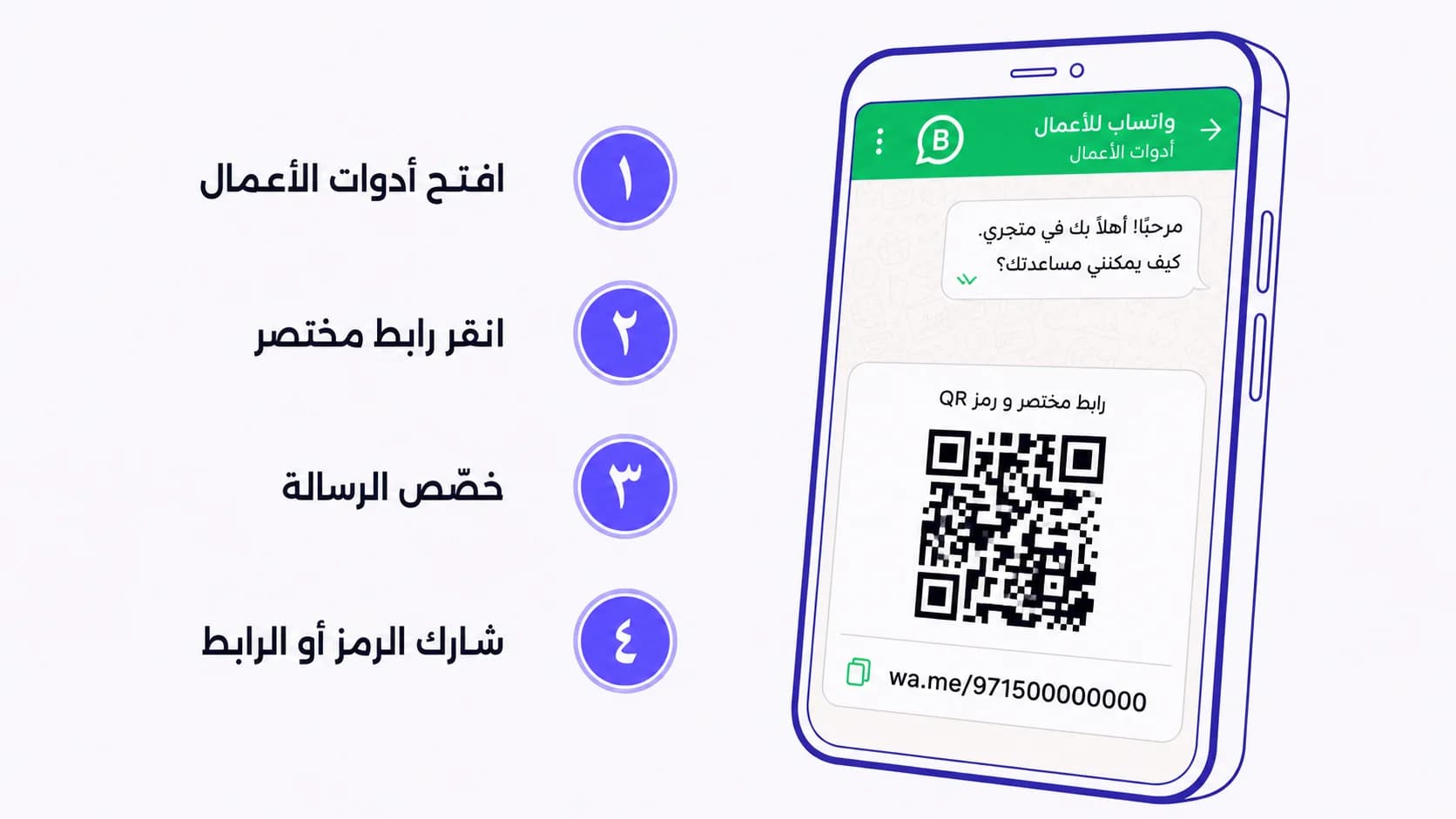
واتساب هو القناة الافتراضيّة بين الأعمال والعملاء في الشرق الأوسط بطريقة لا تجدها في أيّ منطقة أخرى. في الرياض، يستقبل مطعم شاورما طلبات التوصيل عبر واتساب قبل أن يصل طلب واحد عبر جاهز. في دبي، يتعامل وكلاء العقارات مع استفسارات لافتات الفناء كلّها تقريباً عبر واتساب. في القاهرة والدار البيضاء، تؤكّد العيادات المواعيد برسالة واتساب لأنّ الرسائل النصيّة غير موثوقة في الوصول والبريد الإلكتروني يُتجاهَل. إن كنت تدير أيّ عمل يتعامل مع العملاء في المنطقة، فرقم واتساب للأعمال هو بابك الأمامي الثاني — ورمز QR على ملصق أو حامل طاولة أو بطاقة عمل هو الطريقة التي يجدك بها العملاء دون الحاجة إلى كتابة الرقم.
الخبر الجيّد: تطبيق واتساب للأعمال يحوي مولّد QR مدمجاً. المسار من أربع خطوات يستغرق نحو دقيقة. أمّا الفخّ — وهو الجزء الذي لا تشرحه معظم الدلائل — فهو أنّ الرمز الذي يولّده التطبيق رابط ثابت إلى رقم هاتفك. إن غيّرت هاتفك يوماً، أو غيّرت عملك، أو أردت تحديث الرسالة المُعدّة مسبقاً التي تُفتح، فكلّ نسخة مطبوعة من ذلك الرمز تصبح خاطئة. هناك حلّ نظيف لذلك، وسنغطّيه بعد الخطوات الأربع.
المسار في واتساب للأعمال بأربع خطوات
الخطوة ١ — افتح أدوات الأعمال
في تطبيق واتساب للأعمال على هاتفك، اضغط قائمة النقاط الثلاث (أعلى اليمين في أندرويد، تبويب الإعدادات في آيفون)، ثمّ «أدوات الأعمال». هذه هي اللوحة الرئيسيّة لكلّ ما يميّز تطبيق الأعمال عن واتساب العادي — الكتالوج، رسالة الغياب، الردود السريعة، التصنيفات، ومولّد الرابط المختصر الذي نريده.
لا ترى «أدوات الأعمال»؟ أنت على واتساب العادي، لا واتساب للأعمال. نزّل واتساب للأعمال من متجر التطبيقات — تطبيق منفصل ومجّاني، ويمكن تسجيل رقمك على واحد منهما فقط في الوقت ذاته. إن كنت تستخدم حاليّاً الرقم نفسه للشخصي والعمل، فستحتاج إلى هاتفين، أو شريحة مزدوجة، أو خطّ عمل منفصل قبل أن تتمكّن من تشغيل تطبيق الأعمال بشكل صحيح.
الخطوة ٢ — انقر «رابط مختصر»
تحت «أدوات الأعمال»، ابحث عن «رابط مختصر». بالضغط عليه يظهر رابط wa.me الخاص بك — يبدو هكذا wa.me/966500000000 برمز بلدك ورقمك — وأسفله إجراءان: «مشاركة الرابط» و«عرض رمز QR». هذه هي نقطة الدخول التي يراها العملاء. رابط wa.me يعمل في أيّ متصفّح؛ النقر عليه يفتح واتساب مباشرةً على محادثة معك.
في آيفون قد يُسمّى الخيار «رابط مختصر»، وفي أندرويد «رابط مختصر» أو «انقر للمحادثة» — الشاشة نفسها بصياغة مختلفة قليلاً. إن وضعت نسختك من التطبيق هذه الخيارات داخل «الإعدادات ← أدوات الأعمال ← رابط مختصر»، فهي الشيء ذاته، مُعاد ترتيبها فحسب.
الخطوة ٣ — خصّص الرسالة المُعدّة مسبقاً
أكثر ميزة قليلة الاستخدام في هذه الشاشة هي الرسالة المُعدّة مسبقاً. يتيح لك واتساب إضافة رسالة افتراضيّة تظهر في صندوق كتابة العميل لحظة فتحه المحادثة. استخدمها لتوضيح سبب تواصلهم معك — هذا السطر الواحد يحوّل «مرحباً» إلى استفسار قابل للتوجيه.
رسائل مُعدّة مسبقاً جيّدة لأعمال الشرق الأوسط، حسب القطاع:
- مطعم على حامل طاولة: «مرحباً، أودّ الطلب من طاولة رقم ___» — رقم الطاولة يحوّل الفوضى إلى استقبال طلبات منظّم.
- عقارات على لافتة فناء: «مرحباً، أنا مهتمّ بعقار ___ في ___» — أعدّ مرجع القائمة مسبقاً ليعرف الوكيل أيّ وحدة قبل فتح المحادثة.
- عيادة على بطاقات المواعيد: «مرحباً، أريد تأكيد موعدي يوم ___» — يحوّل واتساب إلى قناة تأكيد بدلاً من صندوق وارد إضافي يحتاج فرزاً.
- صالون على ملصق نافذة: «مرحباً، أريد حجز خدمة ___» — خانة الخدمة تميّز قصّة الشعر عن صبغ الشعر عن الأظافر قبل أن تبدأ المحادثة.
- تجارة إلكترونيّة على إيصال إرجاع: «مرحباً، أريد إرجاع طلب رقم ___» — أدخل رقم الطلب في الرسالة ليتمكّن الدعم من سحبه فوراً.
ملاحظتان عمليّتان. الأولى: يجب أن تكون الرسائل المُعدّة مسبقاً قصيرة. سيقتطع واتساب الرسائل الطويلة، والعملاء يعدّلونها عادةً على أيّ حال، فاجعلها سطراً واحداً. الثانية: النسخة المُرمَّزة من رسالتك تُضاف إلى رابط wa.me — البنية التقنيّة هي wa.me/966500000000?text=مرحباً%20أودّ%20الطلب. يتعامل تطبيق الأعمال مع الترميز نيابةً عنك؛ إن كنت تصنع الرابط يدويّاً في مكان آخر، استخدم مُرمِّز URL لأيّ حروف خاصّة أو نصّ عربي.
الخطوة ٤ — شارك الرمز أو الرابط
اضغط «عرض رمز QR». يولّد تطبيق الأعمال رمز QR بإطار أخضر وشعار واتساب في المنتصف. يمكنك تنزيله بصيغة PNG، أو مشاركته مباشرةً عبر أيّ تطبيق، أو طباعته. كذلك يمكن نسخ رابط wa.me منفصلاً إن أردت استخدامه على موقعك أو في توقيع البريد الإلكتروني.
إن كنت تضع الرمز على سطح مطبوع — ملصق، قائمة طعام، بطاقة عمل، لافتة فناء — فاطبعه بعرض لا يقلّ عن ٢ سم على الصفحة النهائيّة، وقم بإجراء اختبار مسح حقيقي بهاتفين مختلفين قبل الالتزام بالكميّة. تنطبق قاعدة ١٠:١: رمز بعرض ٢ سم يُمسح بثبات من حوالي ٢٠ سم، ورمز بعرض ٤ سم من ٤٠ سم. للافتة فناء يُفترض أن تُمسح من نافذة سيارة، تحتاج عرضاً لا يقلّ عن ٨ سم.
فخّ الرابط الثابت (وحلّ الـ QR الديناميكي)
هنا يأتي الجزء الذي تتخطّاه معظم الدلائل. الرمز الذي يولّده واتساب للأعمال يُشفّر رابط wa.me مباشرةً في نمط النقاط. إن غيّرت رقم هاتفك يوماً، أو حوّلت عملك إلى حساب آخر، أو غيّرت الرسالة المُعدّة مسبقاً، أو نقلت واتساب للأعمال إلى شريحة مختلفة، فكلّ نسخة مطبوعة من ذلك الرمز أصبحت الآن خاطئة. لا توجد طريقة لتحديث رمز QR ثابت بعد طباعته — الرابط مدمج فيه.
للأرقام الدائمة التي لا تتغيّر (واتساب المؤسّس الشخصي على بطاقة تعارف، مثلاً)، هذا مناسب. أمّا لأيّ شيء آخر — مطاعم قد يتبدّل هاتف الاستقبال فيها، عيادات بفروع متعدّدة، متاجر إلكترونيّة قد تتطوّر فيها مسارات الدعم — فهي مشكلة حقيقيّة لحظة تغيير أيّ من ذلك.
الحلّ: ولّد رمز QR ديناميكي في QRA يشير إلى رابط wa.me. الرمز يُشفّر رابطاً مختصراً من QRA، ورابط QRA يُعيد التوجيه إلى wa.me. من منظور العميل، يذهب المسح مباشرةً إلى واتساب — النقرتان نفسهما، المحادثة نفسها تُفتح. ومن منظورك، الوجهة قابلة للتعديل الآن. غيّرت هاتفك؟ حدّث وجهة QRA مرّة واحدة؛ كلّ ملصق وبطاقة عمل ولافتة فناء مطبوعة تستمرّ في العمل. أردت إضافة وسم UTM لرابط wa.me؟ يتمّ من لوحة التحكّم، دون إعادة طباعة. تريد تتبّع عدد المسحات التي قادتها لافتة فناء فعليّاً؟ تحصل على تحليلات مسح — البلد، الجهاز، وقت اليوم — لا يوفّرها رابط wa.me.
حالات شائعة خاصّة بالشرق الأوسط
أنماط تتكرّر عبر المنطقة:
فروع متعدّدة، رقم واحد يواجه العملاء
إن كنت تدير سلسلة برقم واتساب واحد لمواجهة العملاء لكن بعدّة مواقع فعليّة (سلسلة قهوة في الرياض، مجموعة عيادات عبر الإمارات)، فالرمز نفسه في كلّ مكان — لكن يجب أن تشير الرسالة المُعدّة مسبقاً إلى الموقع. اطبع نسخة مختلفة لكلّ فرع ليعرف الموظّف على الطرف الآخر أيّ موقع يتواصل منه العميل دون أن يسأل. الرموز الديناميكيّة تجعل ذلك سهلاً: تصميم QR أبٍ واحد، ووجهات لكلّ فرع برسائل مُعدّة مسبقاً مختلفة.
رسائل مُعدّة مسبقاً بالعربيّة أوّلاً
إن كانت قاعدة عملائك ناطقة بالعربيّة في معظمها (السعوديّة، مصر، المغرب، معظم الخليج)، يجب أن تكون الرسالة المُعدّة مسبقاً بالعربيّة أوّلاً. يتعامل واتساب مع الكتابة من اليمين إلى اليسار بشكل صحيح داخل صندوق الكتابة، فرسالة مثل «مرحباً، أريد الاستفسار عن...» ستُعرض بمحاذاة يمنى وتُقرأ طبيعيّاً. إن كنت تخدم سوقاً مختلطة (الإمارات، قطر، الأحياء التجاريّة في الرياض)، فالخيار الأفضل ثنائي اللغة — سطر عربي في الأعلى، إنجليزي في الثاني.
رمز كتالوج مقابل رمز محادثة
يدعم واتساب للأعمال الآن كتالوجات المنتجات. يمكنك توليد رمز QR يفتح مباشرةً على كتالوجك بدلاً من فتح محادثة — مفيد للمطاعم التي تعرض قائمتها دون طباعتها كاملة. تجدها تحت «أدوات الأعمال ← الكتالوج ← مشاركة». مع رمز QR ديناميكي، يمكنك التبديل بين وجهات «فتح محادثة» و«فتح كتالوج» موسميّاً دون تغيير الرمز المطبوع.
كيف تتعامل QRA مع رموز واتساب
ولّد رمز QR من نوع «واتساب» في QRA، أدخل رقم هاتفك مع رمز البلد ورسالة مُعدّة مسبقاً اختياريّة، خصّص الألوان وأضف شعاراً، ثمّ صدّر بصيغة SVG أو PNG. يُمسح الرمز إلى رابط QRA مختصر يُعيد التوجيه (302) إلى رابط wa.me — سريع، دون تأخير محسوس، وقابل للتعديل إلى الأبد. كلّ مسحة تُسجَّل بالبلد والجهاز والوقت والمُحيل، فيمكنك أن ترى ما إذا كانت لافتات الفناء في دبي تتفوّق على قوائم الطعام في جدّة. غيّر رقم الهاتف، حدّث الرسالة المُعدّة مسبقاً، استبدل برابط كتالوج — كلّه من لوحة التحكّم، دون إعادة طباعة.
الإجابة المختصرة
افتح واتساب للأعمال ← أدوات الأعمال ← رابط مختصر ← خصّص الرسالة المُعدّة مسبقاً ← اضغط «عرض رمز QR» ← نزّل. هذا هو المسار، ولرمز شخصي على بطاقة تعارف يكفي. أمّا لأيّ شيء يُطبع بكميّات عبر أكثر من موقع، أو أيّ شيء مرتبط برقم هاتف قد يتغيّر، فولّد رمز QR ديناميكياً يشير إلى رابط wa.me بدلاً من ذلك. خمس ثوانٍ إضافيّة اليوم، صفر إعادات طباعة غداً.
Ready to make a smarter QR?جاهز لإنشاء رمز QR أذكى؟
Sign up free — no card needed. Track every scan, edit destinations anytime.سجّل مجاناً — بدون بطاقة. تتبّع كل عملية مسح وعدّل الوجهة في أي وقت.