Why Your Printed QR Code Looks Blurry (and How to Fix It Before the Print Run)لماذا يبدو رمز QR المطبوع ضبابيّاً (وكيف تصلحه قبل دفعة الطباعة)
Your QR looked crisp on screen and came back from the printer fuzzy, jagged, and unscannable. Almost every case traces to the same root cause: the file you sent the printer was raster (PNG, JPG) at a resolution lower than the printed size demands. The fix is upstream — switch to vector (SVG, EPS, PDF) export and the problem disappears. Here's the full diagnosis.بدا رمز QR لديك حادّاً على الشاشة وعاد من المطبعة ضبابيّاً ومسنّناً وغير قابل للمسح. تقريباً كلّ حالة تعود إلى السبب الجذري نفسه: الملفّ الذي أرسلته إلى المطبعة كان نقطيّاً (PNG، JPG) بدقّة أقلّ ممّا يتطلّبه الحجم المطبوع. الإصلاح في الأعلى — انتقل إلى التصدير المتّجهي (SVG، EPS، PDF) وتختفي المشكلة. إليك التشخيص الكامل.
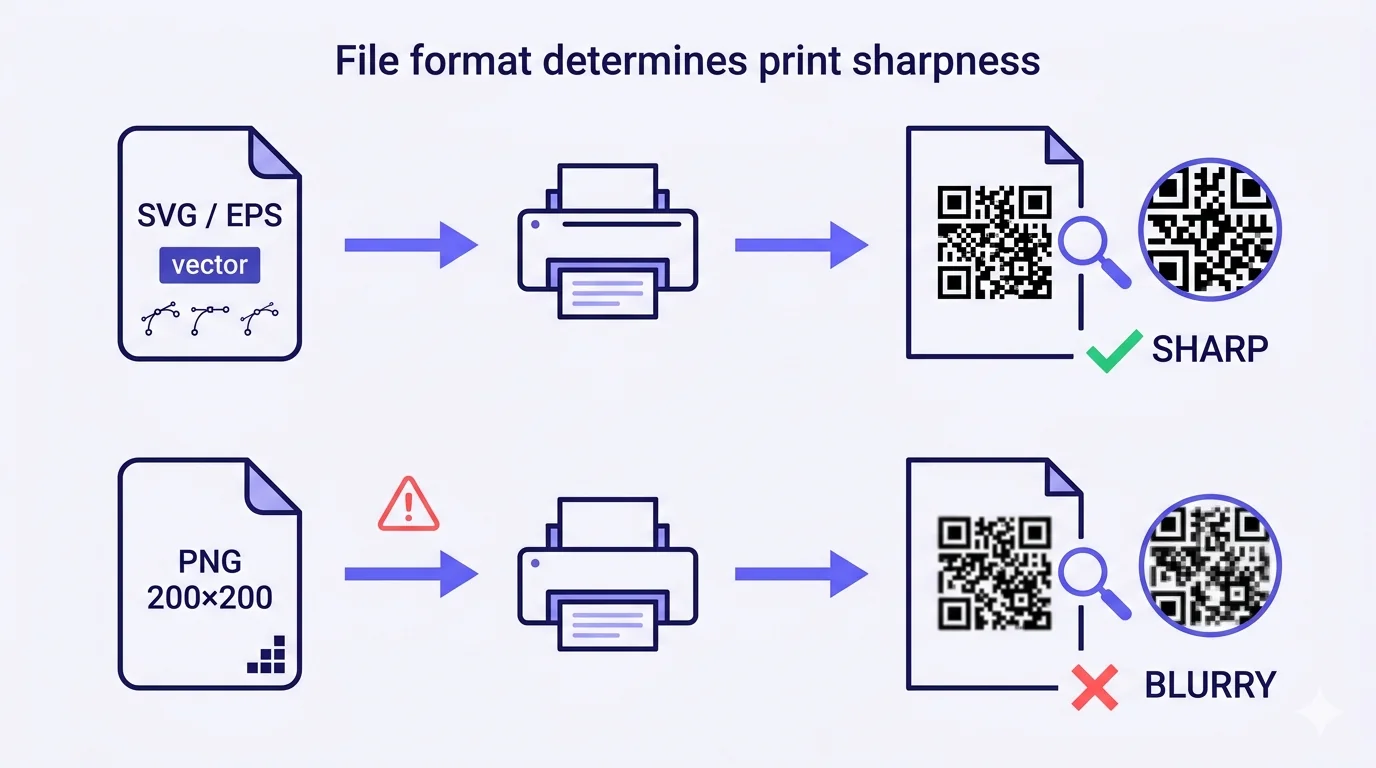
A QR code that scans crisply from a screen and turns up fuzzy on the printed flyer is one of the most frustrating quality failures in marketing production. The QR was fine when you generated it. It scanned fine when you tested. It came back from the printer looking like someone breathed on it. And — far worse than 'ugly' — when the printed run is wide enough, the blur breaks the QR's scan reliability entirely. The print was the wasted run.
Almost every blurry-QR case has the same root cause: the file you sent to the printer was a raster image (PNG, JPG) at a resolution lower than the printed dimensions demand. The QR didn't degrade between generation and print — the file format you handed off didn't carry enough information for the printer to render it sharply at the target size. The fix is upstream, and it's almost embarrassingly simple once you know what to do.
Why printed QRs go blurry — the technical part
Two image categories matter here:
Raster images (PNG, JPG, GIF, BMP) — fixed resolution
A raster image is a grid of pixels. A 200×200 PNG contains exactly 40,000 pixels of information — no more, no less. When you scale that image up to print at 10 cm wide on a 300-DPI offset press, the printer has to invent the pixels that aren't there. Some printers do this with simple nearest-neighbour scaling (which gives you crisp-but-aliased squares — jagged stair-step edges); others do it with bicubic or smarter interpolation (which gives you smooth-but-fuzzy edges). Either way, the QR's module corners are no longer mathematically perfect — they're approximated from limited source data, and the approximation introduces error.
For QR codes specifically, the approximation matters because phone cameras decoding a QR rely on detecting clean black-vs-white module boundaries. Fuzzy edges mean the camera has to work harder to decide whether a borderline pixel is part of a black module or part of a white quiet zone. Below a certain threshold of edge clarity, the camera gives up and the QR fails to scan.
Vector images (SVG, EPS, PDF) — infinite resolution
A vector image isn't a grid of pixels. It's a set of mathematical instructions: 'draw a black square from coordinate (10, 10) to (15, 15)', repeated for every QR module. The instructions don't have a resolution — they describe shapes, not pixels. When the printer renders a vector file at 10 cm, 50 cm, or 5 metres, the math produces perfectly sharp edges at every size. There's no approximation, no interpolation, no pixel invention. The QR's modules are pixel-perfect at any print scale.
This is why vector exports — SVG, EPS, PDF — are the right format for any printed QR. Not 'better' — right. The difference isn't quality-vs-cheap; it's correct-vs-incorrect for the use case.
When raster is actually fine (and when it isn't)
Raster QRs are perfectly fine in two scenarios:
- Pure digital use — the QR will only ever be displayed at a fixed pixel size on a screen, never printed. A 256×256 PNG of a QR is fine for an Instagram post or a website hero image.
- Print where the source pixel resolution exceeds the target print size by a comfortable margin. A 3000×3000 PNG of a QR printed at 5 cm wide still has roughly 1500 source pixels per cm — vastly more than the ~120 effective pixels-per-cm the printer needs at 300 DPI. The math works, even though vector would be cleaner.
The trouble starts when a low-resolution raster (≤ 500 pixels in each dimension) gets handed to a printer asked to print it at any size beyond about 2 cm wide. Below 2 cm the print is small enough that some smoothing hides; beyond 2 cm the pixelation becomes obvious; beyond 5 cm the QR may genuinely become unscannable in the printed output.
How to diagnose a blurry-QR situation
If you've already got a print run and it looks blurry, here's the diagnostic sequence:
- Find the source file you sent to the printer. Check its actual dimensions in pixels (PNG/JPG) or its file extension. If the extension is .svg, .eps, or .pdf, the source is vector and the blur is the printer's fault — escalate to them. If the extension is .png, .jpg, .gif, or .bmp, the source is raster.
- If raster: check the file's pixel dimensions. Common low-resolution defaults from free online QR generators are 200×200, 250×250, 300×300, sometimes 500×500. All of these are too small for any print over 2 cm wide.
- If raster + low resolution + large print: that's the cause. The fix is to re-export the QR as vector and reprint with the new file.
- Edge case — raster + high resolution (>2000 px each side) + blurry print anyway: this is the printer's problem (downscaling poorly, low-quality press, paper absorption). Show them the source file and demand a sharper render or a press upgrade.
- Edge case — vector source + blurry print: rare, but happens. Some printers downsample vector source files into raster internally before printing if their workflow can't handle native vector. Ask whether their workflow accepts native vector to the press, and if not, whether they can configure it.
The fix — vector export, every time
When generating a QR for print, always export the vector version. In QRA, the QR-generation wizard's export dropdown offers PNG, SVG, EPS, and PDF — choose SVG or EPS (preferred) or PDF (acceptable). Send the vector file to the printer with a clear note: 'native vector to the press, no rasterisation upstream'.
If your printer's intake system only accepts certain formats and your vector doesn't fit, the priority order is: native vector (SVG, EPS, PDF) > high-resolution raster (TIFF/PNG at 3000+ pixels per dimension or 600+ DPI explicitly tagged) > low-resolution raster (avoid). PDF is broadly accepted by every commercial print workflow; if SVG and EPS get rejected, generate a PDF with the QR embedded as a vector object.
Common scenarios where blurry QRs happen
Generating from a free QR website that only offers PNG
The most common failure path. A user generates a QR on a 'free QR generator' website, downloads the PNG it offers (usually 200-500 pixels square), drops it into Canva or directly into a flyer template, and sends to print. The Canva preview looks fine because it shows the QR at small screen-size; the print at 5 cm is fuzzy. Fix: use a generator that offers SVG/EPS/PDF export (QRA does; many free ones don't). Switch generators before generating, not after.
Pasting a QR into Word/PowerPoint and printing from there
Word and PowerPoint rasterise vector content during certain operations — particularly when you copy-paste from a browser preview or when you save-as a flattened PDF. Even if you started with a vector QR, the workflow can downsample it to raster mid-process. Fix: keep the QR as a separate file the whole way through and place it natively into your design software (Adobe InDesign, Illustrator, Affinity Publisher — all handle SVG/EPS/PDF natively without rasterising). If you must use Word/PowerPoint, insert the QR as an EMF or SVG rather than PNG, and check the saved-PDF version before sending to print.
Designer added a logo or styling without preserving vector integrity
Custom-coloured QRs, logo-embedded QRs, and stylised-corner QRs are usually generated as vectors but can lose vector integrity when post-processed. If your designer added their own colour treatment in Photoshop (raster) rather than Illustrator (vector), the colour-treated QR exits as raster regardless of what the source was. Fix: handle all QR styling in vector-aware tools (Illustrator, Affinity Designer, Inkscape) and export as SVG/EPS/PDF. Photoshop QR treatments are a bad pattern even when they look fine on screen — the print output will be raster-scaled and likely blurry.
Print on uncoated paper or porous material
Even with a perfect vector source, print on uncoated cardstock, kraft paper, or fabric can cause ink bleed that fuzzies the QR's module edges. If your visual material is intentionally textured (kraft cardstock for branding reasons), increase the QR's error-correction level (H = 30%) to give the QR more redundancy to survive printing imperfections, increase the print size by 20-30% beyond the standard minimum, and verify scan reliability with a real test print on the actual material before committing to volume.
Print-specs checklist for QRs that have to scan
If you're printing a QR that must work reliably in the field, run through this checklist before approving:
- Source file is vector (SVG, EPS, or PDF with vector-embedded QR). Confirmed by file extension and by opening in a vector-aware viewer.
- Print size is at least 2 cm wide for typical eye-level scanning, larger for elevated or distance signage (rule of thumb: 1 cm of QR per 10 cm of scan distance).
- Quiet zone of at least 4 modules (≈ 5 mm at 2 cm QR width) of clean background around the QR. Confirm no other content intrudes.
- Print on paper or material whose absorption is appropriate for the ink type. Glossy laminate, uncoated cardstock, vinyl, fabric, and metal-finish all behave differently — get a printed test sample on the final material.
- Contrast: minimum dark-foreground on light-background. Avoid coloured QRs without testing scan reliability across multiple phones first. If using brand colours, keep the modules dark (deep brand colour) on light background, never inverted.
- Real-device scan test on the printed material at the final size with at least two different phones (one iPhone, one Android — ideally one Android more than 2 years old). If both scan reliably from the expected distance, the run is cleared.
How QRA handles this by default
QRA exports every QR as both PNG (for digital use) and SVG/EPS (for print) — same generation, dual outputs. The vector exports are true vectors with the QR modules as scalable geometry, plus the embedded logo and frame as vector elements where applicable. For your print supplier, hand off the SVG or EPS — no rasterisation upstream means the QR is mathematically perfect at any printed scale. Logo positioning, colour treatments, frames, corner styles, and dot styles all remain vector through export. If you've been using a free generator that only outputs PNG, switch — the file-format difference is the single biggest quality lift you can make to your printed QR work.
The short answer
Raster QRs blur when printed larger than their source resolution permits. Vector QRs don't blur, ever, at any print size. Export your QR as SVG, EPS, or PDF and send the vector file to your printer. The fuzzy QR you got back from the last print run was a file-format problem upstream, not a printer skill problem downstream. Switch the export format before the next run, and the entire category of 'why does my printed QR look blurry' disappears from your inbox.
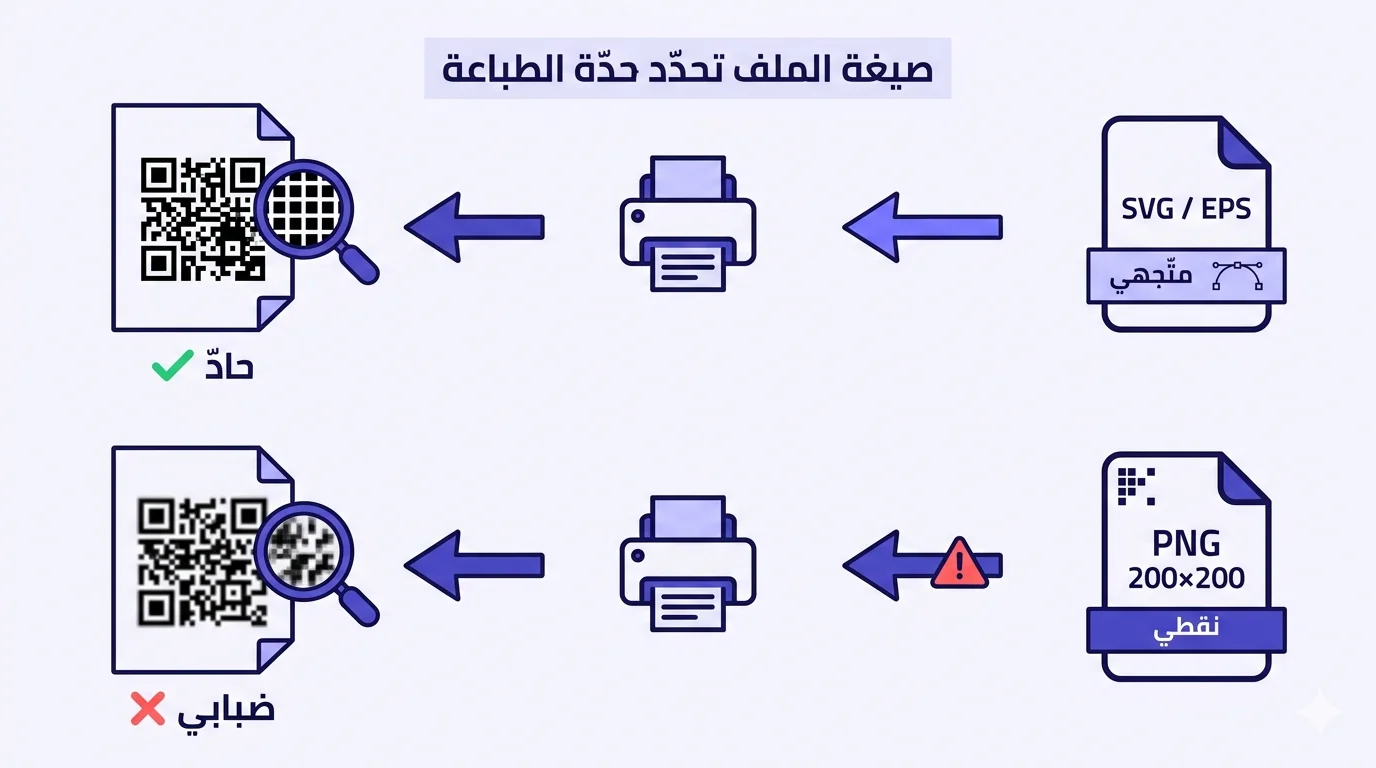
رمز QR يُمسح بحدّة من شاشة ويظهر ضبابيّاً على النشرة المطبوعة هو أحد أكثر إخفاقات الجودة إحباطاً في إنتاج التسويق. الرمز كان جيّداً حين ولّدته. مُسح جيّداً حين اختبرته. عاد من المطبعة يبدو وكأنّ أحداً نفخ عليه. والأسوأ من «قبيح» — حين تكون دفعة الطباعة عريضة بما يكفي، يكسر الضبابيّ موثوقيّة مسح QR تماماً. تصبح الطباعة دفعةً مهدورة.
تقريباً كلّ حالة QR ضبابي لها السبب الجذري نفسه: الملفّ الذي أرسلته إلى المطبعة كان صورة نقطيّة (PNG، JPG) بدقّة أقلّ ممّا تتطلّبه الأبعاد المطبوعة. لم يتدهور الرمز بين التوليد والطباعة — الصيغة التي سلّمتها لم تحمل معلومات كافية لتُصيّرها المطبعة بحدّة بالحجم المطلوب. الإصلاح في الأعلى، وهو بسيط بشكل شبه محرج بمجرّد أن تعرف ما يجب فعله.
لماذا تذهب QR المطبوعة إلى الضبابيّة — الجزء التقني
فئتا صور تهمّ هنا:
الصور النقطيّة (PNG، JPG، GIF، BMP) — دقّة ثابتة
الصورة النقطيّة هي شبكة من البكسلات. ملفّ PNG بمقاس ٢٠٠×٢٠٠ يحتوي على ٤٠،٠٠٠ بكسل من المعلومات بالضبط — لا أكثر، لا أقلّ. حين تكبّر تلك الصورة لتُطبع بعرض ١٠ سم على مطبعة أوفست بـ ٣٠٠ نقطة لكلّ بوصة، يجب على المطبعة اختراع البكسلات غير الموجودة. بعض المطابع تفعل ذلك بتحجيم الجار الأقرب البسيط (الذي يعطيك مربّعات حادّة-لكن-مسنّنة — حواف سلّم متعرّجة)؛ أخرى تستخدم تحجيماً ثنائي المكعّب أو أذكى (الذي يعطيك حواف ناعمة-لكن-ضبابيّة). في الحالتَين، زوايا وحدات QR لم تعد مثاليّة رياضيّاً — تُقَدَّر من بيانات مصدر محدودة، والتقدير يدخل خطأ.
لرموز QR تحديداً، التقدير يهمّ لأنّ كاميرات الهاتف التي تفكّ ترميز QR تعتمد على اكتشاف حدود وحدات سوداء-مقابل-بيضاء نظيفة. الحواف الضبابيّة تعني أنّ الكاميرا يجب أن تعمل أصعب لتقرّر ما إذا كان بكسل حدّي جزءاً من وحدة سوداء أم جزءاً من منطقة هادئة بيضاء. تحت عتبة معيّنة من وضوح الحواف، تستسلم الكاميرا ويفشل QR في المسح.
الصور المتّجهة (SVG، EPS، PDF) — دقّة لا متناهية
الصورة المتّجهة ليست شبكة من البكسلات. إنّها مجموعة من التعليمات الرياضيّة: «ارسم مربّعاً أسود من الإحداثيّ (١٠، ١٠) إلى (١٥، ١٥)»، مكرَّرة لكلّ وحدة QR. التعليمات ليس لها دقّة — تصف أشكالاً، لا بكسلات. حين تُصيّر المطبعة ملفّاً متّجهيّاً بـ ١٠ سم، أو ٥٠ سم، أو ٥ أمتار، تنتج الرياضيّات حواف حادّة تماماً بكلّ حجم. لا تقدير، لا استكمال، لا اختراع بكسل. وحدات QR مثاليّة-البكسل بأيّ مقياس طباعة.
لهذا فإنّ التصدير المتّجهي — SVG، EPS، PDF — هو الصيغة الصحيحة لأيّ QR مطبوع. ليس «أفضل» — صحيح. الفرق ليس جودة-مقابل-رخيص؛ بل صحيح-مقابل-خاطئ لحالة الاستخدام.
متى يكون النقطي مناسباً فعلاً (ومتى لا)
رموز QR النقطيّة مناسبة تماماً في حالتَين:
- الاستخدام الرقمي البحت — سيُعرض QR فقط بحجم بكسل ثابت على شاشة، لن يُطبع أبداً. ملفّ PNG بمقاس ٢٥٦×٢٥٦ لـ QR جيّد لمنشور إنستغرام أو صورة هيرو لموقع.
- الطباعة حيث تتجاوز دقّة بكسل المصدر حجم الطباعة المستهدف بهامش مريح. ملفّ PNG بمقاس ٣٠٠٠×٣٠٠٠ لـ QR مطبوع بعرض ٥ سم لا يزال يحوي تقريباً ١٥٠٠ بكسل مصدر لكلّ سم — أكثر بكثير من الـ ١٢٠ بكسل لكلّ سم الفعّالة التي تحتاجها المطبعة عند ٣٠٠ نقطة لكلّ بوصة. الرياضيّات تعمل، حتّى لو كان المتّجهي أنظف.
تبدأ المشكلة حين يُسلَّم نقطي منخفض الدقّة (≤ ٥٠٠ بكسل في كلّ بُعد) لمطبعة مُطالَبة بطباعته بأيّ حجم يتجاوز ٢ سم عرضاً. تحت ٢ سم تكون الطباعة صغيرة بما يكفي ليُخفي بعض النعومة؛ فوق ٢ سم يصبح التشويش واضحاً؛ فوق ٥ سم قد يصبح QR فعلاً غير قابل للمسح في الخرج المطبوع.
كيف تشخّص حالة QR ضبابي
إن كانت لديك بالفعل دفعة طباعة وتبدو ضبابيّة، إليك التسلسل التشخيصي:
- اعثر على ملفّ المصدر الذي أرسلته إلى المطبعة. تحقّق من أبعاده الفعليّة بالبكسل (PNG/JPG) أو من امتداد ملفّه. إن كان الامتداد .svg، .eps، أو .pdf، فالمصدر متّجهي والضباب خطأ المطبعة — صعّد الأمر إليها. إن كان الامتداد .png، .jpg، .gif، أو .bmp، فالمصدر نقطي.
- إن كان نقطيّاً: تحقّق من أبعاد بكسل الملفّ. الإعدادات الافتراضيّة الشائعة منخفضة الدقّة من مولّدات QR المجّانيّة على الإنترنت هي ٢٠٠×٢٠٠، ٢٥٠×٢٥٠، ٣٠٠×٣٠٠، أحياناً ٥٠٠×٥٠٠. كلّها صغيرة جدّاً لأيّ طباعة فوق ٢ سم عرضاً.
- إن نقطي + دقّة منخفضة + طباعة كبيرة: هذا هو السبب. الإصلاح هو إعادة تصدير QR كمتّجهي وإعادة الطباعة بالملفّ الجديد.
- حالة طرفيّة — نقطي + دقّة عالية (>٢٠٠٠ بكسل في كلّ جانب) + طباعة ضبابيّة على أيّ حال: هذه مشكلة المطبعة (تحجيم نزولي ضعيف، مطبعة منخفضة الجودة، امتصاص ورق). أرها ملفّ المصدر واطلب تصييراً أحدّ أو ترقية مطبعة.
- حالة طرفيّة — مصدر متّجهي + طباعة ضبابيّة: نادر، لكنّه يحدث. بعض المطابع تحوّل ملفّات المصدر المتّجهة إلى نقطيّة داخليّاً قبل الطباعة إن كان سير عملها لا يستطيع التعامل مع المتّجهي الأصلي. اسأل ما إذا كان سير عملها يقبل المتّجهي الأصلي إلى الطباعة، وإن لم يكن، ما إذا كان يمكنهم تكوينه.
الإصلاح — التصدير المتّجهي، في كلّ مرّة
حين تولّد QR للطباعة، صدّر دائماً النسخة المتّجهة. في QRA، تعرض قائمة التصدير في معالج توليد QR صيغ PNG، SVG، EPS، و PDF — اختر SVG أو EPS (مفضّل) أو PDF (مقبول). أرسل الملفّ المتّجهي إلى المطبعة مع ملاحظة واضحة: «متّجهي أصلي إلى الطباعة، بلا تحويل نقطي في الأعلى».
إن كان نظام استلام مطبعتك يقبل صيغاً معيّنة فقط ومتّجهيّك لا يناسب، فترتيب الأولويّات هو: متّجهي أصلي (SVG، EPS، PDF) > نقطي عالي الدقّة (TIFF/PNG بـ ٣٠٠٠+ بكسل لكلّ بُعد أو ٦٠٠+ نقطة لكلّ بوصة معلّمة صراحةً) > نقطي منخفض الدقّة (تجنّبه). PDF مقبول على نطاق واسع في كلّ سير عمل طباعة تجارية؛ إن رُفض SVG و EPS، ولّد PDF بـ QR مدمج ككائن متّجهي.
حالات شائعة تحدث فيها رموز QR ضبابيّة
التوليد من موقع QR مجّاني يعرض PNG فقط
أكثر مسار فشل شيوعاً. يولّد مستخدم QR على موقع «مولّد QR مجّاني»، ينزّل PNG الذي يعرضه (عادةً ٢٠٠-٥٠٠ بكسل مربّعاً)، يُسقطه في Canva أو مباشرةً في قالب نشرة، ويرسل للطباعة. تبدو معاينة Canva جيّدة لأنّها تعرض QR بحجم شاشة صغير؛ الطباعة بـ ٥ سم ضبابيّة. الإصلاح: استخدم مولّداً يعرض تصدير SVG/EPS/PDF (QRA يفعل؛ كثير من المجّاني لا يفعل). بدّل المولّدات قبل التوليد، لا بعده.
لصق QR في Word/PowerPoint والطباعة من هناك
Word و PowerPoint يحوّلان المحتوى المتّجهي إلى نقطي خلال عمليّات معيّنة — خاصّةً حين تنسخ-وتلصق من معاينة متصفّح أو حين تحفظ-كـ PDF مسطّح. حتّى لو بدأت بـ QR متّجهي، يمكن لسير العمل أن يحوّله نقطيّاً في منتصف العمليّة. الإصلاح: احتفظ بـ QR كملفّ منفصل طوال الطريق وضعه أصليّاً في برنامج التصميم لديك (Adobe InDesign، Illustrator، Affinity Publisher — كلّها تتعامل مع SVG/EPS/PDF أصليّاً دون تحويل نقطي). إن وجب استخدام Word/PowerPoint، أدخل QR كـ EMF أو SVG بدلاً من PNG، وتحقّق من نسخة PDF المحفوظة قبل الإرسال للطباعة.
المصمّم أضاف شعاراً أو تنسيقاً دون الحفاظ على سلامة المتّجهي
رموز QR ملوّنة مخصّصة، رموز QR بشعار مدمج، ورموز QR بزوايا منمّقة تُولَّد عادةً كمتّجهات لكنّها قد تفقد سلامة المتّجهيّة حين تُعالَج لاحقاً. إن أضاف مصمّمك معالجة ألوانه الخاصّة في Photoshop (نقطي) بدلاً من Illustrator (متّجهي)، فإنّ QR المعالَج بالألوان يخرج كنقطي بغضّ النظر عن المصدر. الإصلاح: تعامل مع كلّ تنسيق QR في أدوات واعية للمتّجهي (Illustrator، Affinity Designer، Inkscape) وصدّر كـ SVG/EPS/PDF. معالجات QR في Photoshop نمط سيّئ حتّى حين تبدو جيّدة على الشاشة — الخرج المطبوع سيكون نقطيّاً-مُكبَّراً وعلى الأرجح ضبابيّاً.
الطباعة على ورق غير مطلي أو مادّة مساميّة
حتّى مع مصدر متّجهي مثالي، يمكن للطباعة على ورق مقوّى غير مطلي، أو ورق كرافت، أو قماش، أن تسبّب نزف حبر يضبّب حواف وحدات QR. إن كانت مادّتك البصريّة مقصودة الملمس (ورق كرافت مقوّى لأسباب علامة تجاريّة)، ارفع مستوى تصحيح الأخطاء لـ QR (H = ٣٠٪) لإعطاء QR مزيداً من التكرار لينجو من عيوب الطباعة، زد حجم الطباعة بنسبة ٢٠-٣٠٪ فوق الحدّ الأدنى القياسي، وتحقّق من موثوقيّة المسح بطباعة اختبار حقيقيّة على المادّة الفعليّة قبل الالتزام بالكميّة.
قائمة مواصفات الطباعة لرموز QR التي يجب أن تُمسح
إن كنت تطبع QR يجب أن يعمل بثبات في الميدان، اعبر هذه القائمة قبل الموافقة:
- ملفّ المصدر متّجهي (SVG، EPS، أو PDF بـ QR متّجهي مدمج). مؤكَّد بامتداد الملفّ وبالفتح في عارض واعٍ للمتّجهات.
- حجم الطباعة لا يقلّ عن ٢ سم عرضاً للمسح على مستوى العين الاعتيادي، أكبر للافتات المرتفعة أو لمسافات بعيدة (قاعدة عمليّة: ١ سم من QR لكلّ ١٠ سم من مسافة المسح).
- منطقة هادئة لا تقلّ عن ٤ وحدات (≈ ٥ ملم عند عرض QR من ٢ سم) من خلفيّة نظيفة حول QR. تأكّد من عدم تطفّل أيّ محتوى آخر.
- اطبع على ورق أو مادّة يتناسب امتصاصها مع نوع الحبر. التغليف اللامع، الورق المقوّى غير المطلي، الفينيل، القماش، والتشطيب المعدني تتصرّف كلّها بشكل مختلف — احصل على عيّنة اختبار مطبوعة على المادّة النهائيّة.
- التباين: حدّ أدنى داكن-على-فاتح. تجنّب رموز QR ملوّنة دون اختبار موثوقيّة المسح عبر عدّة هواتف أوّلاً. إن استخدمت ألوان العلامة، أبقِ الوحدات داكنة (لون العلامة الغامق) على خلفيّة فاتحة، لا معكوسة أبداً.
- اختبار مسح بجهاز حقيقي على المادّة المطبوعة بالحجم النهائي بهاتفَين مختلفَين على الأقلّ (آيفون واحد، أندرويد واحد — يُفضّل أن يكون أحدهما أكبر من سنتَين). إن قرأ الاثنان بثبات من المسافة المتوقّعة، تكون الدفعة جاهزة.
كيف تتعامل QRA مع هذا افتراضيّاً
QRA تصدّر كلّ QR كـ PNG (للاستخدام الرقمي) و SVG/EPS (للطباعة) — توليد واحد، خرجان مزدوجان. التصديرات المتّجهة هي متّجهات حقيقيّة مع وحدات QR كهندسة قابلة للتحجيم، إضافةً إلى الشعار المدمج والإطار كعناصر متّجهة حيث ينطبق. لمزوّد طباعتك، سلّم SVG أو EPS — لا تحويل نقطي في الأعلى يعني أنّ QR مثالي رياضيّاً بأيّ مقياس مطبوع. وضع الشعار، معالجات الألوان، الإطارات، أنماط الزوايا، وأنماط النقاط كلّها تبقى متّجهة عبر التصدير. إن كنت تستخدم مولّداً مجّانيّاً يخرج PNG فقط، انتقل — فرق صيغة الملفّ هو أكبر رفعة جودة واحدة يمكنك تحقيقها على عمل QR المطبوع لديك.
الإجابة المختصرة
رموز QR النقطيّة تضبّب حين تُطبع بحجم أكبر ممّا تسمح به دقّة مصدرها. رموز QR المتّجهة لا تضبّب أبداً، بأيّ حجم طباعة. صدّر QR لديك كـ SVG، EPS، أو PDF وأرسل الملفّ المتّجهي إلى مطبعتك. QR الضبابي الذي عاد من دفعة الطباعة الأخيرة كان مشكلة صيغة ملفّ في الأعلى، لا مشكلة مهارة طباعة في الأسفل. بدّل صيغة التصدير قبل الدفعة القادمة، وتختفي فئة «لماذا يبدو QR المطبوع لديّ ضبابيّاً» بأكملها من صندوق وارد بريدك.
Ready to make a smarter QR?جاهز لإنشاء رمز QR أذكى؟
Sign up free — no card needed. Track every scan, edit destinations anytime.سجّل مجاناً — بدون بطاقة. تتبّع كل عملية مسح وعدّل الوجهة في أي وقت.